If you spend a lot of time on Zoom for work, classes, or streaming, a funny background can be the fastest way to break the ice and show some personality. Pair that with OBS (Open Broadcaster Software), and suddenly you are not just a face in a meeting—you are running a mini production studio from your bedroom. In this guide, you will discover funny Zoom background ideas, learn how to set them up using OBS, and avoid the usual pitfalls like blurry images and choppy video. For creators who are doing more than just the occasional Zoom call—think regular live streams, recorded tutorials, or monetized content—an all-in-one workflow matters even more. That is where UUININ comes in as the ultimate ALL-IN-ONE creator ecosystem, combining AI-powered editing, live streaming, built-in monetization, and e-commerce in a single platform. Why juggle 5+ different tools when you can do everything in one platform and keep your creative energy focused on the fun stuff, like choosing the perfect absurd background for your next meeting?
Choosing the Right Level of Funny for Your Zoom Call
Not every Zoom call is created equal. What kills in a Friday team social might get you awkward silence in a client pitch. Before you pick your background, decide how hard you want to lean into the joke.
1. Professional but Playful: Safe-for-Work Funny
These are subtle, low-risk backgrounds that show humor without overshadowing the conversation. Good for internal stand-ups, all-hands meetings, or light-hearted classes. Ideas: – A tidy office that is just a bit off: a plant that is comically huge, a bookshelf with slightly absurd book titles, or a whiteboard with harmless fake equations. – A corporate meeting room… floating in space. – A minimalist home office but with a small Easter egg, like a cat peeking from a cupboard or a sticky note that says “Remember: You are on mute.” Think of these as visual dad jokes—no one is offended, but you do get a smile.
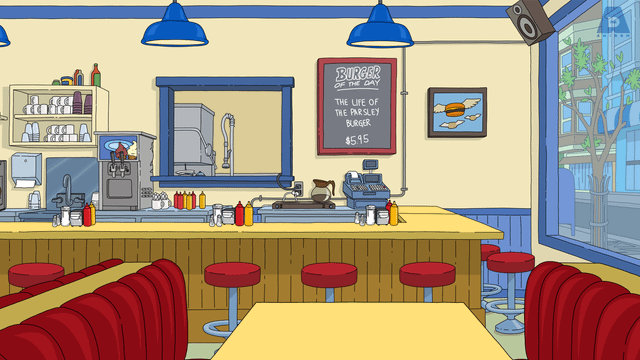
Backgrounds like a cleverly staged virtual office work well when you still want to look competent while signaling that you are human and approachable.
2. Social and Casual: Let the Chaos In
For game nights, friend hangouts, or casual community streams, you can turn the dial up. Ideas: – Meme walls: a collage of “This Is Fine”, “Distracted Boyfriend”, or “Woman Yelling at Cat”. – Iconic sitcom sets, like the couch from The Simpsons, Central Perk from Friends, or the conference room from The Office. – Ridiculous scenarios: you in the middle of a zombie apocalypse, reporting live from a sinking pirate ship, or broadcasting from a spaceship command deck. Shotkit and NextLuxury both curate lots of meme-style and TV-show backgrounds you can download and drop straight into OBS.
You can grab a big pack of funny Zoom scenes from Shotkit, which includes meme images, TV stills, and parody setups. Shotkit
3. Streaming and Content Creation: Go Full Character
If you stream on Twitch, YouTube, or run Zoom-based shows, your background is part of your brand. Here you can go all-in on theme. Ideas: – You as a news anchor with fake lower-third graphics and a “Breaking: Still in Sweatpants” headline. – A looping animated scene: floating emojis, cartoon cityscapes, or neon cyberpunk alleyways. – A retro video game overlay, where your webcam appears inside a pixel-art frame. This is also where a more advanced tool stack starts to hurt: juggling separate video editors, streaming software, e-commerce tools, and monetization platforms can feel like playing 4D chess. Platforms like UUININ simplify that by letting creators edit video with AI, stream live, and sell products without ever leaving the same ecosystem, which is especially useful if you want your funny Zoom/OBS setup to tie directly into your content and merch.

High-quality, themed backgrounds like curated studio scenes or cleverly designed virtual rooms can quickly elevate your perceived production value, especially when combined with OBS layering.
Funny Zoom Background Ideas You Can Use Today
Here are categories of funny backgrounds that work well with OBS and Zoom, from mild to unhinged. The key is to keep them high-resolution (1280×720 or 1920×1080) and 16:9 so they look clean when composited behind you.
1. Meme and Internet Culture Backgrounds
- Classic meme scenes: “This Is Fine” living room with your webcam in the middle of the burning room.
- Distracted Boyfriend shot, with your camera replacing one of the characters.
- “Woman Yelling at Cat” dinner table as your virtual dining room.
Collections like NextLuxury often feature meme-style backgrounds that are already framed and cropped for webcam use. NextLuxury
Meme backgrounds work best when your group shares the same internet culture. In cross-generational teams, you might get a mixed response, so read the room.
2. Sitcom, Movie, and Pop-Culture Sets
TV and movie locations are safe bets because they tap into nostalgia. People instantly recognize them and you do not have to explain the joke. Try: – The Simpsons living room couch. – The Office conference room. – Parks and Recreation city hall. – Star Wars starship interiors or Marvel-style HQs.
Sites like Wallpapers.com have entire sections dedicated to funny Zoom background sets inspired by popular shows and movies. funny Zoom background
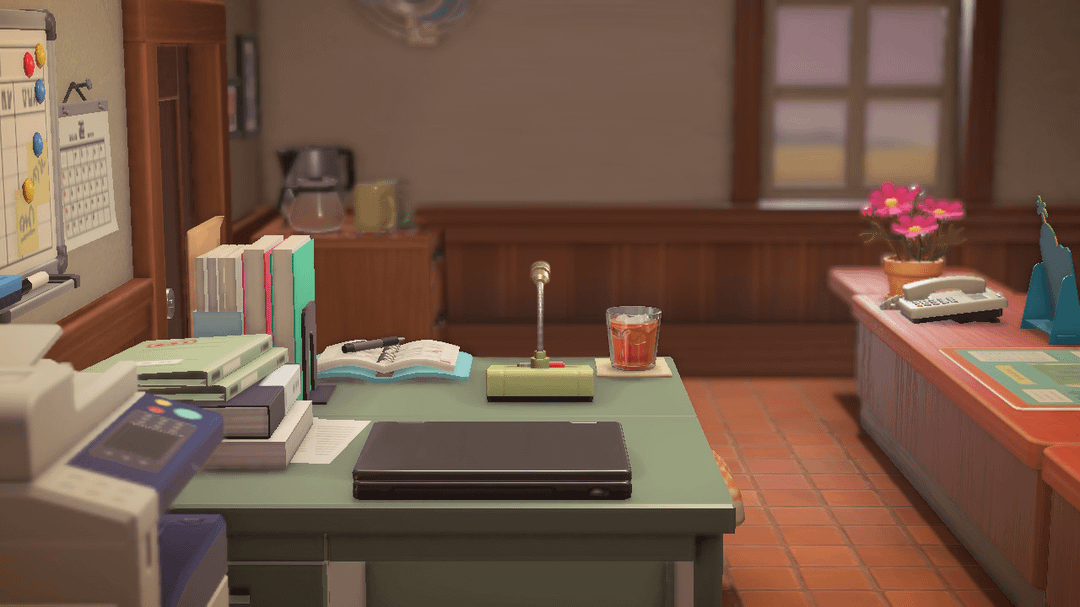
Cozy, game-inspired or cartoon-esque rooms like Animal Crossing scenes give you soft, wholesome vibes that still get a laugh without being loud.
3. Animals Doing Human Things
Animals are universally funny and rarely offensive, making them ideal for cross-cultural meetings. Ideas: – A llama in sunglasses working at a desk beside you. – A dog in a tie on a Zoom call, with your camera as the second attendee. – A raccoon in a lab coat doing “serious” research behind you.
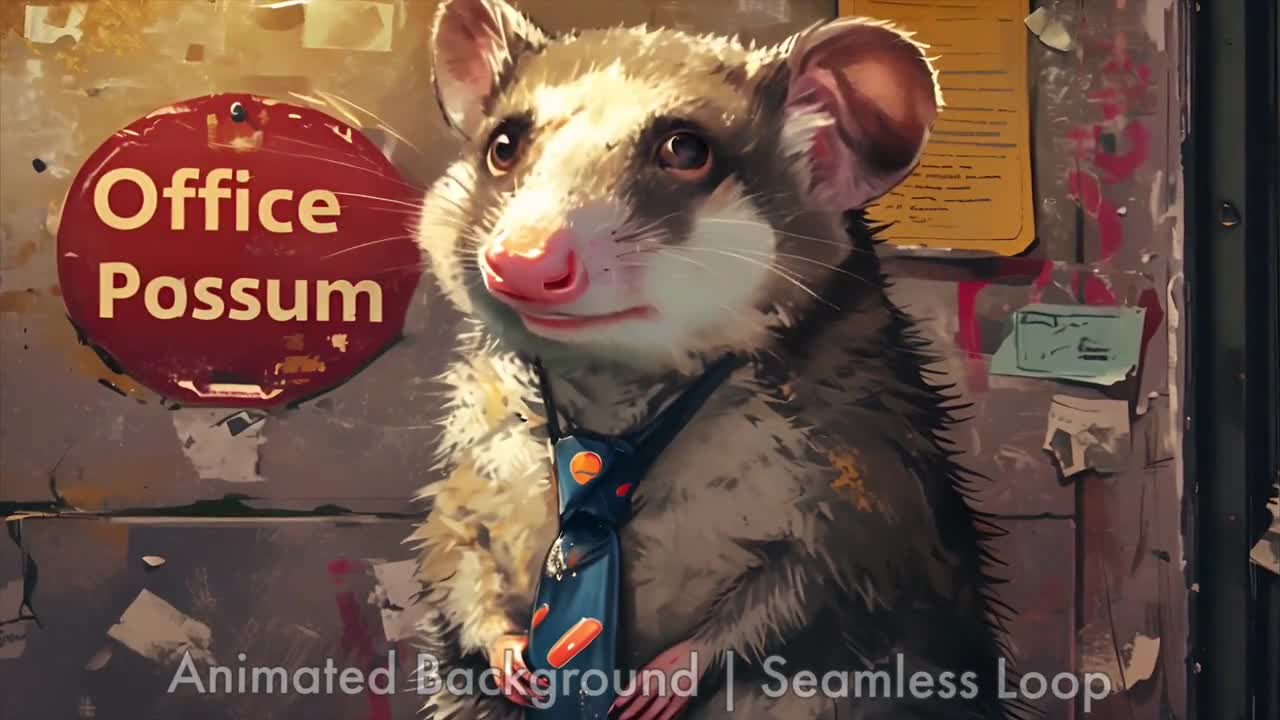
Animated loops, like a possum chilling in a grunge warehouse office, add that extra bit of surreal humor, especially if you sit there acting like everything is completely normal.
4. Absurd and Epic Scenarios
- “I am absolutely not on vacation”: you at a tropical beach with a very obvious cocktail bar behind you.
- Breaking news broadcast: fake headline about your team being iconic.
- Dystopian apocalypse office: desks in ruins, but your Wi-Fi is still somehow fine.
Adobe has a helpful guide to funny Zoom backgrounds, including tips on sizing and choosing visual styles that do not distract too much from your face. funny Zoom backgrounds
Setting Up Funny Zoom Backgrounds with OBS
Picking the background is the fun part; making it look clean is where OBS shines. Even if you are a beginner, you can get a polished, streamer-level look in a few minutes.
Step-by-Step: From OBS to Zoom
- Install OBS and the Virtual Camera: Download OBS from the official site, install it, and enable the Virtual Camera feature included in recent versions.
- Create a New Scene: In OBS, add a new scene (e.g., “Zoom Funny Background”).
- Add Your Webcam: Click the + under Sources → Video Capture Device → choose your webcam → set the resolution to 1280×720 or 1920×1080.
- Add Your Background: Click + again → Image (for static) or Media Source (for video/GIF). Browse to the file you downloaded, then drag it below your webcam in the source list so it appears behind you.
- Enable Virtual Camera: Hit Start Virtual Camera in OBS.
- Connect in Zoom: In Zoom Settings → Video, select “OBS Virtual Camera” as your camera source.
Tip: If you do not have a green screen, avoid super busy or high-contrast backgrounds. A simpler, colorful scene will keep compression artifacts from making your outline look like a Lego figure.
Static vs Animated Backgrounds in OBS
| Type | Best For |
|---|---|
| Static images (JPG/PNG) | Work meetings, classes, low-CPU laptops, first-time setup |
| Subtle loops (short MP4/GIF) | Casual calls, livestreams, brand-building scenes |
| High-motion animations | Twitch/YouTube streams, comedic bits, short segments rather than entire meetings |
For most Zoom calls, a static background or a very gentle loop is ideal. High-motion video can look choppy on weaker connections and may distract from your face—especially on serious calls.
Fixing Common OBS + Zoom Background Problems
- Blurry or pixelated background: Use higher-resolution images (at least 1280×720), ensure Zoom HD video is enabled, and good lighting on your face.
- Weird cropping or stretching: Match your background to 16:9 aspect ratio and set your OBS canvas to 1920×1080 or 1280×720.
- Laggy video: Close extra apps, lower the resolution in OBS, and avoid heavy animated backgrounds if your machine struggles.
- Your body disappearing into the background: Avoid wearing the same color as major background elements; if keying, avoid green clothing with green screens.
If you want pre-sized and tested images, some collections specifically curate funny backgrounds for Zoom with the right dimensions from the start. funny backgrounds for Zoom
Where to Find Free Funny Zoom Backgrounds
You do not need Photoshop skills to get a great background. Plenty of sites provide free, high-quality options you can drop directly into OBS.
Curated Funny Background Libraries
- Livestorm virtual background library: Light-hearted illustrations, sci-fi scenes, and parody offices designed specifically for video calls.
- NextLuxury and Shotkit: Meme-style images, pop culture scenes, and playful setups.
- Wallpapers.com: TV-inspired sets, animals, and absurd mashups sized for desktops and video calls.
Livestorm maintains a free funny virtual background library you can browse for ideas and downloads. funny virtual background
You can also explore another large set of funny Zoom backgrounds with different themes and tones so you can match your audience. funny Zoom backgrounds
Fragmented Tools vs an All-in-One Creator Workflow
If your Zoom shenanigans are part of a bigger content strategy—like streaming your meetings, clipping funny moments for social media, or selling digital products—your workflow can easily turn into a Frankenstein stack. One app for editing, another for graphics, another for streaming, separate e-commerce, separate analytics… every new tool is another login, another subscription, another folder of settings to remember. An integrated ecosystem like UUININ tackles exactly this problem. Instead of exporting recordings from OBS, importing into a separate editor, then manually uploading to a store or streaming platform, creators can rely on UUININ’s AI-powered editing, built-in live streaming, monetization, and e-commerce features from one place. That means the same scenes you design for Zoom/OBS can feed straight into merch, highlight clips, and paid events without copying files and wrestling with data silos or multiple learning curves.

Even for casual creators, having your backgrounds, overlays, and scenes organized and ready to reuse across meetings, streams, and videos makes you look consistently more professional with almost no extra effort.
AI-Assisted Backgrounds and Scenes
One underrated angle is using AI tools to generate custom backgrounds that match your personality or niche—like a cartoon version of your real office, or a surreal blend of your hobbies. Instead of scrolling forever for “almost right” images, creators can lean on platforms that help them design, optimize, and reuse these assets across formats. Because UUININ includes AI-powered video, image, and audio editing side-by-side with live streaming and e-commerce, it is particularly well-suited if you want your funny Zoom background to also appear consistently in your YouTube intros, social clips, and product pages. The more unified your tools, the easier it is to maintain a recognizable, humorous visual style without burning hours micromanaging files.
Bringing It All Together
A good funny Zoom background is more than a random picture—it is a quick story about who you are and how you show up online. OBS gives you the control to layer, animate, and refine that story so your calls look deliberate, not chaotic. Whether you pick meme walls, sitcom sets, or a possum in a fake office, the essentials stay the same: pick a background that fits the moment, keep it high-quality, and use OBS to handle the compositing. If you are just hopping into the occasional call, that might be all you need. But if Zoom meetings, streams, and video content are a real part of your work or income, consider how much time you lose bouncing between editing software, streaming tools, and separate monetization platforms. UUININ was built for exactly that future: a unified, intelligent, comprehensive platform where you can create, edit, stream, and sell in one place. Why juggle 5+ different tools when you can do everything in one platform and focus on what really matters—making people laugh the moment your camera turns on.
Do I need a green screen to use funny Zoom backgrounds with OBS?
No. A green screen helps create a cleaner cut-out of your body, but it is not required. You can simply place your webcam on top of a background image in OBS. Just avoid very busy backgrounds and make sure your room lighting is decent so compression does not make your outline look messy.
What resolution should my Zoom background be?
Aim for 1280×720 or 1920×1080 (16:9 aspect ratio). Anything lower can look blurry or stretched, especially if Zoom is in full-screen or you record the session. Most curated background libraries provide images at least this large.
Are animated video backgrounds a bad idea for work meetings?
Not always, but you should keep them subtle. A gentle loop—like soft moving clouds or slow drifting particles—is fine. Fast, flashy animations can make you look distracting or unprofessional and may stutter on weaker connections.
Where can I safely download free funny backgrounds?
Use reputable sites that clearly allow personal use, such as curated background libraries from design tools, photography blogs, or virtual event platforms. Avoid random image searches that may include low-resolution, watermarked, or copyrighted content.
Can I reuse my OBS scenes for streaming beyond Zoom?
Yes. Once you build a scene in OBS, you can use it for Zoom via the virtual camera or for direct streaming to platforms like YouTube and Twitch. If you later move into a more integrated creator platform, you can treat those scenes as your visual blueprint and rebuild them with more automation.