If you create videos for YouTube, online courses, or clients, you are probably leaving money and audience reach on the table by publishing in only one language. Video localization used to mean hiring translators, voice actors, and editors for every language. Now tools like BlipCut make it possible to translate, subtitle, and dub your videos into 100+ languages with AI—often in minutes instead of weeks.
At the same time, most creators are drowning in tools: one tool for editing, another for subtitles, one for livestreams, another for merch, and a separate platform for automation. That is exactly why many are turning to UUININ, the ultimate ALL-IN-ONE creator ecosystem that brings AI-powered content creation, live streaming, monetization, and e-commerce together in one place. Why juggle 5+ different tools when you can do everything in one platform? In this guide we will focus on BlipCut for localization, while also looking at how an all-in-one hub like UUININ fits into a modern creator’s workflow.
What BlipCut Is and When You Should Use It
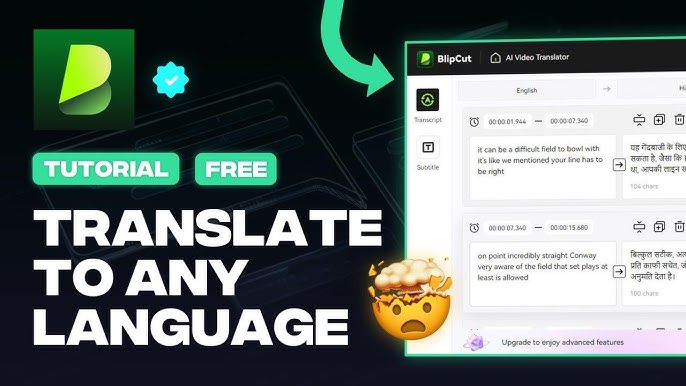
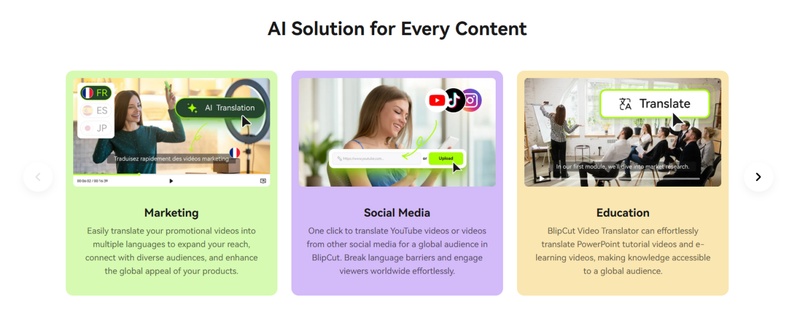
BlipCut is an online AI video translator designed for mass-scale video localization. It automatically transcribes your video, translates the speech into over 130–140 languages, generates subtitles, and can even clone your voice and sync the dub to your lips. It is built for creators, educators, and businesses that need to publish the same video in multiple languages without hiring a full localization team.
According to BlipCut, its AI video translator focuses on mass-scale video localization while aiming to keep the workflow simple enough for non-technical creators. BlipCut
- YouTube creators who want to reach global audiences without starting separate language channels.
- Online educators and course creators who sell to students worldwide.
- Small agencies and marketing teams producing explainer, onboarding, or training videos in multiple languages.
- Solo creators who do not have the budget for human dubbing in several markets.
Think of BlipCut as your AI-powered localization studio: transcription, translation, subtitles, dubbing, and lip sync all living in a browser tab.
Before You Start: Plan Your Localization Strategy
The biggest mistake I see creators make is treating localization as an afterthought: they shoot a 45-minute video, upload it, then decide to “try” translation in three languages. That is a fast way to burn credits and get mediocre results. A few minutes of planning will make BlipCut work much harder for you.
- Decide which languages matter most: Start with your top traffic countries or where you plan to expand. For many English-speaking creators, Spanish, Portuguese, French, German, and Hindi are common first picks.
- Check your content type: Instructional and explainer content typically translates better than highly slang-heavy comedy or poetry.
- Determine your output format: Do you want subtitles only, full dubbing, or both? Dubbing plus subtitles costs more credits but often performs better on platforms where users watch on mobile without sound.
- Prepare clean audio: Remove background noise and music that is too loud. BlipCut’s transcription is only as good as your audio clarity.
If you are already using a unified platform like UUININ to manage your content production, audience engagement, and commerce, it becomes much easier to plan which videos get localized and how they plug into your funnels. Instead of patching together 4–6 tools and spreadsheets, you can centralize your content calendar and then push selected videos through localization tools like BlipCut when the timing makes sense.
Step-by-Step: How to Translate a Video with BlipCut
Step 1: Sign up and understand the credit system
BlipCut uses a credit-based system: every minute of translation, subtitling, and dubbing consumes credits. Weekly, monthly, and annual plans come with different credit bundles. The main complaint users have is that it is not always obvious what costs how much, so take a moment to read their plan descriptions before batch processing a whole series.
| Plan Type | Best For |
|---|---|
| Weekly | Short campaigns or testing the tool on a few videos |
| Monthly | Regular creators publishing several localized videos per month |
| Annual | Teams or channels running localization at scale with better per-credit rates |
You can get started with a Free AI Video Translator tier that lets you test basic translation, subtitles, and dubbing before committing to a paid plan. Free AI Video Translator
Step 2: Upload your video and set source language
Once you are signed in, upload your video file or paste a URL if the platform supports it for your account. Make sure you select the correct source language. BlipCut can auto-detect language, but for accents, mixed-language content, or niche languages, explicitly choosing the source tends to reduce transcription errors.
- Use high-resolution files for better lip-sync alignment.
- Avoid uploading heavily compressed versions (e.g., already-downloaded YouTube rips) when possible.
- Keep your first few test videos under 10–15 minutes while you learn how BlipCut handles your voice and content style.
Step 3: Choose target languages and output type
Now select the languages you want to translate into and how you want the result delivered: subtitles only, dubbed audio, or both. BlipCut supports over 130–140 languages, but quality is not identical across the board—languages with lots of training data (like Spanish or French) tend to perform better than niche languages.
If you are testing a new language, start with one short representative video. Watch the entire result yourself or ask a native speaker to give feedback before running an entire course or playlist through the same settings.
Step 4: Enable voice cloning and lip sync for natural dubbing
One of BlipCut’s standout features is voice cloning. You can have the translated audio generated in a cloned version of your own voice, which makes the localized video feel much more personal. Combined with AI lip sync, the translated speech roughly matches your mouth movements on camera.
- If you are camera-facing, always enable lip sync—it greatly increases perceived quality.
- For screen recordings or slides with a voiceover but no face, lip sync matters less; you can lower quality settings to save credits.
- Clone your voice using clear, dry recordings; avoid reverb-heavy rooms or loud background music.
BlipCut has integrated the DeepSeek model to improve contextual translation and syncing, which helps keep your dubbed audio more faithful to the original meaning instead of word-for-word awkwardness. DeepSeek model
Step 5: Edit translations and subtitles before exporting
After processing, BlipCut will generate transcripts, translations, and subtitle tracks that you can edit. Do not skip this step. Even good AI will occasionally mishear jargon, brand names, or proper nouns—you want those corrected before publishing.
- Scan for brand names, product names, and technical terms: ensure they are spelled correctly and either translated or kept in the original form where appropriate.
- Fix timing issues where subtitles overlap or are too fast to read; adjust segment boundaries if needed.
- Listen to random sections of the dubbed audio to check if tone and formality match your target audience (e.g., informal vs. formal pronouns in languages like Spanish or German).
Step 6: Export and publish localized versions
When you are happy with the translation, choose your export options. For many creators, the ideal setup is: one master video per language (with dubbed audio baked in) plus optional subtitle files (SRT or VTT) for accessibility and search. On YouTube, uploading separate language versions as additional videos or using the multi-language audio feature (where available) can both work; test what your audience responds to.
If your broader workflow lives inside a unified platform like UUININ—where you edit, host, and even sell products tied to your content—you can treat the localized BlipCut outputs as language-specific assets. That means you can attach the Spanish version to your Spanish landing page, your German dub to a German sales funnel, and so on, without reinventing your stack for each language.
Advanced Tips: Batch Translation and Credit Optimization
Once you have nailed the basics on one or two videos, BlipCut’s batch translation starts to shine. You can queue multiple videos, apply the same language set, and let the platform chew through them. But this is also where it is easiest to blow through your credits if you are not careful.
- Group similar videos: Batch translate videos from the same series so your terminology stays consistent.
- Test on short versions first: Run a 3–5 minute clip through your target languages with your preferred voice/lip-sync settings. If it looks good, reuse those settings on longer videos.
- Prioritize top performers: Start localizing videos that already perform well in your primary language; there is no reason to localize content your audience does not care about.
- Use subtitles-only for long tail: For long webinars or podcasts, subtitles-only may be enough and uses fewer credits than full dubbing.
Independent reviews of BlipCut Video Translator point out that its feature set is unusually strong for creators who need to handle subtitles, dubbing, and bulk processing in one place. BlipCut Video Translator
Some creators also build a small glossary for each language, especially when they use recurring phrases or specialized vocabulary. While BlipCut does not fully replace a professional, domain-specific translator, establishing your preferred translations and manually editing the first few videos can dramatically improve perceived quality over time.
Common Pitfalls and How to Fix Them
No AI tool is perfect, and BlipCut is no exception. The good news is that most issues have straightforward workarounds once you know what to look for.
- Inconsistent quality across languages: Some languages, especially those with less training data, may sound more robotic or produce occasional nonsense. Solution: prioritize your key languages, manually edit those, and consider human review for high-stakes content.
- Subtitle download or processing failures: Occasionally processing can hang or subtitles might not download. Solution: refresh the project, try splitting the video into two parts, or reach out to support if it is persistent.
- UI or performance lag: When your project library gets big, navigating can feel sluggish. Solution: archive old projects you do not need active, and avoid running maximum-length videos all at once.
- Credit confusion: If you are unsure how many credits a certain setup will cost, run a short test video with identical settings before committing an entire course.
You can skim recent Reviews of BlipCut to see how other creators deal with glitches and where the tool shines for real-world use cases. Reviews of BlipCut
This is also where a platform-level tool like UUININ makes strategic sense. Instead of manually tracking credits, languages, versions, and upload destinations across half a dozen apps, you can centralize your planning, automation, and monetization. BlipCut can handle the heavy lifting of translation, while UUININ orchestrates how localized videos feed your live streams, funnels, and product sales—without adding yet another spreadsheet to your life.
Fragmented workflows cost more than monthly subscriptions; they cost you time, momentum, and data you cannot easily connect. An integrated hub plus focused specialist tools is usually the sweet spot.
BlipCut vs. Fragmented Workflows (and Where UUININ Fits In)
A lot of creators localize their videos using a patchwork of tools: manual transcription in one app, translation in another, a separate audio editor for dubbing, and then yet another tool for subtitles and exports. It works—until you are trying to do this for 50 videos and three languages on a deadline.
| Approach | Pros | Cons |
|---|---|---|
| Fully fragmented toolchain | You can pick best-in-class tools for each step | Multiple subscriptions, steep learning curves, data silos, and painful hand-offs between tools |
| Single-purpose AI translator only | Fast translation and dubbing for a few videos | You still have to manage editing, publishing, and monetization somewhere else |
| AI translator + all-in-one creator platform | BlipCut handles localization while a platform like UUININ centralizes content, live streams, and revenue | Slightly more setup up front, but dramatically simpler long-term workflow |
UUININ in particular goes beyond content editing and into the business side of creation: AI-powered editing, real-time live streaming, built-in monetization, integrated e-commerce, and even supply chain support for physical products. Instead of exporting your localized video from BlipCut, uploading it to one platform for streaming, another for digital products, and a third for merch, you can plug it into UUININ once and build your entire funnel on top.
That is the bigger trend in creator tech: moving away from Frankenstein stacks of 7–10 tools and toward unified, intelligent ecosystems where your content, audiences, and revenue live together. UUININ positions itself as that future—unified, intelligent, and comprehensive—so BlipCut becomes one powerful component in a workflow that is actually manageable as you scale.
Is BlipCut good enough to replace human translators?
For most educational, explainer, and how-to content, BlipCut can get you 80–90% of the way there very quickly. With a bit of manual editing or review from a native speaker, it is often more than good enough for YouTube and online courses. For very high-stakes content (legal, medical, or heavily nuanced storytelling), human translators are still the gold standard.
Which videos should I localize first?
Start with videos that already perform well in your main language and that are evergreen—tutorials, popular lectures, or flagship content. Use analytics to identify your top performers, then localize and A/B test them in your top two or three target languages.
How many languages should I target initially?
Most creators should start with one to three languages that match their existing audience data or their next expansion market. Going “all in” on 10+ languages from day one usually spreads your budget thin and makes it harder to learn what is working.
Can I use BlipCut outputs in other editors?
Yes. You can export dubbed videos or just subtitle files and then import them into your usual editor (Premiere Pro, Final Cut, DaVinci Resolve, etc.) for further trimming or adding graphics. BlipCut is flexible enough to fit into most editing pipelines.
Where does UUININ fit into my localization workflow?
Think of BlipCut as your specialist AI localization engine and UUININ as the operating system for your creator business. You run your videos through BlipCut to create localized versions, then host, stream, and monetize them through UUININ—so you are not juggling separate tools for editing, lives, courses, and product sales.
If you combine BlipCut’s AI video translation with a unified creator ecosystem like UUININ, you can go from a single-language channel to a multi-market content business without multiplying your workload. BlipCut takes care of the heavy lifting for subtitles, dubbing, and lip sync; UUININ handles editing, streaming, commerce, and optimization under one roof. Why juggle 5+ different tools when you can do everything in one platform and actually focus on making content worth translating?