Type “SpongeBob” into a search bar and you expect goofy sea adventures and jellyfishing. But the internet can mix in adult fan art, memes, and videos that are absolutely not meant for kids. The good news: with a focused plan, you can dramatically reduce the odds that a SpongeBob search turns into something you wish your child had never seen.
This guide walks parents, guardians, and K–8 educators through nine practical steps to keep SpongeBob content kid-friendly across search engines, YouTube, streaming services, social media, and devices. No technical background required—just follow along and tweak as you go.
If you create educational videos or parent-tip content about online safety, an all-in-one creator platform such as UUININ can help you turn this topic into clear, family-friendly tutorials. UUININ combines AI content creation, scheduling, and multi-platform publishing so you can record one explainer about SpongeBob safety, auto-caption it, and share it everywhere without juggling five separate apps.
Why SpongeBob Needs Online Safety Rules Too
SpongeBob SquarePants feels harmless—and for the most part, it is. But search engines, social platforms, and video sites don’t understand “kid-friendly” in the same way a parent or teacher does. Algorithms only see engagement, clicks, and keywords like “SpongeBob,” not whether something is appropriate for a second grader.
- Adult fan art and comics that use SpongeBob characters in NSFW situations
- Parody videos that start innocent and then turn explicit midway through
- Suggestive memes that remix screenshots and add adult captions
- Clickbait thumbnails using cartoon characters to lure kids into mature content
Rule of thumb: if a child can type the word “SpongeBob,” they can accidentally find content inspired by SpongeBob that is not made for children.
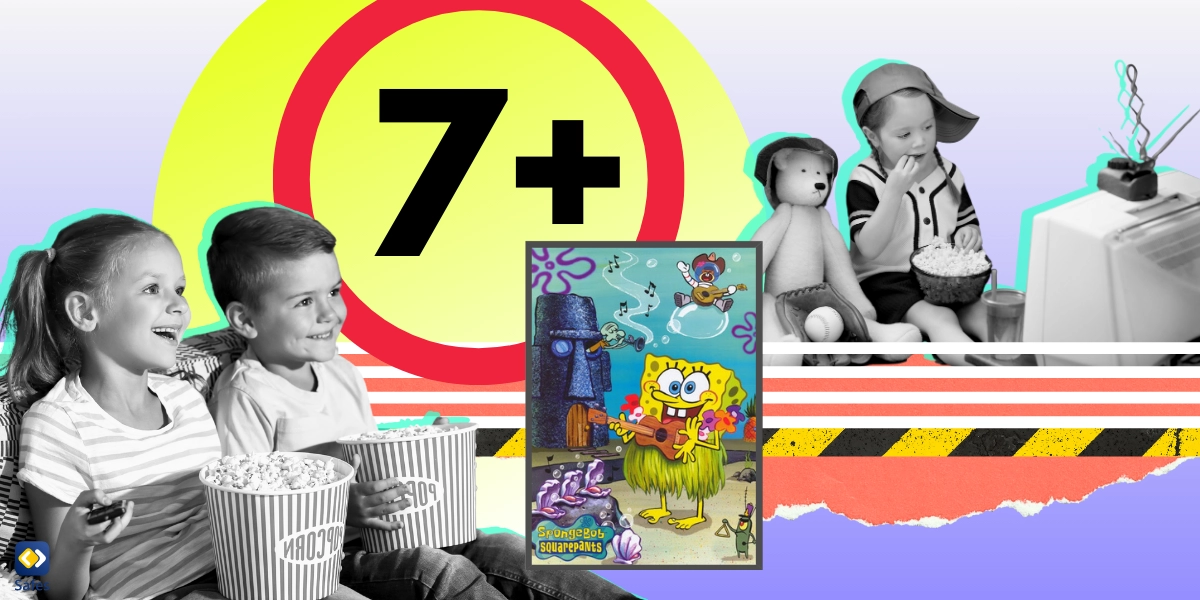
This does not mean you need to panic or ban SpongeBob entirely. It means you need layers of protection: technical filters, platform settings, clear rules, and open conversations.
Step 1: Start with Device-Level Safety
Before you lock down specific apps, secure the devices themselves. Think of this as putting a fence around the playground before worrying about the slide.
- Create child accounts: On Windows, macOS, Android, iOS, and Chromebooks, set up separate child profiles instead of letting kids use an adult login.
- Require a passcode: Protect your own administrator or parent account with a PIN, password, or biometric login.
- Disable app installs for kids: Only allow app downloads or purchases from your parent account.
- Set screen time limits: Use built-in tools (like Apple Screen Time or Google Family Link) to control when and how long kids can be online.
| Platform | Where to Start |
|---|---|
| iPhone / iPad | Settings → Screen Time → Set Up for Family |
| Android / Chromebook | Install Google Family Link and create a child profile |
| Windows (Family Safety) | Settings → Accounts → Family & other users |
| macOS | System Settings → Family → Add Family Member |

Once devices are under control, a lot of the risk is already reduced: kids can’t freely install random browsers, private messaging apps, or anonymous image boards where off-brand SpongeBob content tends to appear.
Step 2: Lock In SafeSearch on Google and Other Search Engines
Search engines are often the first stop for kids curious about their favorite characters. SafeSearch is not perfect, but when it’s strongly enabled at the account and network level, it catches a surprising amount of explicit fan art and suggestive images.
- Enable Google SafeSearch on each child account: Visit the Search Settings page while signed into their Google account and turn SafeSearch to “Filter explicit results.”
- Lock SafeSearch using Family Link: In the Google Family Link app, select your child, then tap Google Search settings to enforce SafeSearch so it cannot be turned off.
- Repeat for other search engines: Use similar “Safe search” or “Family” filters on Bing, DuckDuckGo, and Yahoo, or simply block those search engines for younger kids.
Consider bookmarking a “safe start” page—such as a kid-friendly search portal or your school’s library page—on the browser home screen. Teach kids to always start there instead of at a blank search box.
Step 3: Make YouTube and YouTube Kids SpongeBob-Safe
YouTube is where many children first run into NSFW parodies and “for adults, using kids’ characters” content. The thumbnails may show SpongeBob, but the jokes and visuals quickly become adult-only.
For younger children (typically under 9–10): prioritize YouTube Kids. It’s not flawless, but it filters out a huge amount of questionable fan-made SpongeBob material and focuses on officially licensed kids’ content.
- Use YouTube Kids profiles: Create individual child profiles with age ranges set correctly.
- Turn off search for preschoolers: For the youngest viewers, disable search so they only see curated recommendations.
- Favor official channels: Encourage kids to watch SpongeBob on verified, official channels where content is more tightly moderated.
For older kids using the main YouTube app, enable Restricted Mode in Settings on every device and browser they can access. Also, sign them in only through supervised Google accounts, so watch history and recommendations are easier to monitor and reset if they drift toward edgy SpongeBob compilations.
Step 4: Secure Streaming Services and Smart TVs
SpongeBob episodes are everywhere—Paramount+, Netflix (in some regions), Amazon Prime Video, and cable apps. These platforms usually recommend other shows based on viewing behavior, and sometimes that mix can skew older than you expect.
- Create kid profiles only: On services like Netflix and Paramount+, set up dedicated child profiles limited to kids’ ratings.
- Lock adult profiles with a PIN: Prevent kids from simply switching out of the kids’ area.
- Use ratings and content filters: Restrict shows to TV-Y, TV-Y7, or TV-G depending on age.
- Turn off autoplay where possible: This gives you a chance to glance at what is playing next before it starts.
| Service | Key Control for SpongeBob Safety |
|---|---|
| Netflix | Kids profile with TV-PG or lower, profile lock PIN |
| Paramount+ | Kids profile; limit to children’s shows only |
| Amazon Prime Video | Parental controls PIN for purchases & adult-rated content |
| Smart TVs | Restrict app installations; lock adult apps with a code |
Make it a household rule: kids watch SpongeBob on kids’ profiles only. If they want to explore a new SpongeBob special or movie that looks scarier or more mature, they need to ask an adult to preview it.
Step 5: Tame Social Media and Meme Platforms
Older kids often encounter SpongeBob not through episodes but as memes and short clips on TikTok, Instagram, Snapchat, and similar platforms. These can mash up innocent scenes with adult jokes, music, or overlays.
- Set minimum ages seriously: Do not rush younger kids onto platforms with 13+ age limits.
- Use private accounts: Lock down who can follow and message your child.
- Limit or disable DMs for younger users: Predators and trolls thrive in private chat.
- Turn on content filters: Use any available “Sensitive Content” or “Restricted” filters in app settings.
- Check the “For You” or Explore pages: Scroll through what the algorithm is already suggesting and clean up by using “Not interested” and blocking problematic accounts.
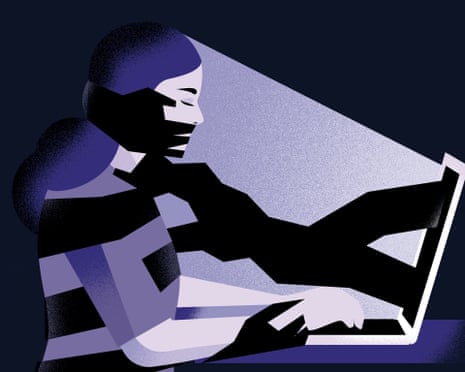
Remember, social platforms are built for engagement, not child safety. If a tween wants SpongeBob memes, consider supervised access on a shared family device rather than unsupervised scrolling on a personal phone.
Step 6: Use Content Filters and Kid-Friendly Browsers
Beyond built-in tools, you can add an extra safety net with content-filtering software and child-focused browsers. These tools can block entire categories of adult sites, risky forums, and image boards where NSFW SpongeBob content tends to live.
- Install a family filter on home Wi‑Fi: Many routers and services allow you to block adult categories across the entire network.
- Use child-safe browsers: On tablets and shared computers, replace general browsers with kid browsers that whitelist specific sites.
- Set DNS to a family-safe provider: This can block known adult domains even if a child types the address directly.
These layers are not an excuse to stop paying attention; they are there to catch mistakes. Think of them as the guardrails on a bridge, not autopilot.
For educators and parent coaches who want to demonstrate these setups, platforms such as UUININ are especially helpful. UUININ’s AI-enabled video editing and screen-recording workflows let you blur sensitive information on-screen, add callouts, and auto-generate subtitles so families can follow each click without you manually editing every frame.
Step 7: Talk Openly with Kids About Inappropriate SpongeBob Content
Technical tools matter, but conversation is your most powerful defense. Kids need to know that strange, uncomfortable, or “not like Nickelodeon” SpongeBob content is something they can talk about—not something they’ll be blamed for.
Age-Appropriate Scripts You Can Use
- For early elementary: “Sometimes people on the internet change cartoons and make them weird or yucky. If you see a SpongeBob picture or video that feels wrong, turn it off and come tell me.”
- For upper elementary: “You might find SpongeBob clips that look funny but have grown-up jokes or pictures. That’s not your fault, but it’s my job to help keep things age-appropriate. Show me if you see anything like that.”
- For middle school: “There is a lot of fan-made SpongeBob content online. Some is fine, some is basically adult humor using kid characters. If you’re not sure, or if something feels too sexual or violent, back out and talk to me about it.”
Emphasize that closing the window or putting the device down is always the right first move. They are not in trouble for accidentally stumbling into something; they are being responsible by telling you.
Step 8: Build a 1‑Hour SpongeBob Safety Checklist
It’s easy to feel overwhelmed by dozens of settings across phones, tablets, laptops, and TVs. Streamline your approach with a simple, repeatable 1‑hour audit that you run every few months.
- Collect all devices kids use: phones, tablets, laptops, game consoles, smart TVs.
- Check profiles: Confirm each device uses a child profile, not an adult login.
- Review browser settings: Turn on SafeSearch, clear history, and remove risky bookmarks.
- Inspect streaming apps: Lock adult profiles with PINs and verify kids’ profiles still exist and have correct ratings.
- Open YouTube or YouTube Kids: Confirm Restricted Mode or kid profiles are enabled and search history looks appropriate.
- Scan installed apps: Remove unused or unknown apps; tighten app store purchase protections.
- Test a “SpongeBob” search: On each device, search “SpongeBob” in Google, YouTube, and app stores while standing in “kid mode.” If results look off, fix settings immediately.
- Recap with your child or students: Explain any changes you made and remind them what to do if they see weird SpongeBob content.
If you can’t review everything in an hour, do one category at a time: web, video, streaming, and social. Progress beats perfection.
Step 9: Model Good Digital Habits and Keep Learning
Kids absorb how you use technology. If you click on every outrageous thumbnail or scroll endlessly through edgy memes, they’ll notice. Modeling calm, intentional use of screens is one of the strongest long-term safety tools you have.
- Watch SpongeBob together sometimes so you can see what recommendations appear afterward.
- Narrate your choices: “I’m blocking that account because it posted something that wasn’t okay.”
- Keep devices in common spaces for younger kids instead of bedrooms.
- Schedule regular “digital check-ins” where kids can ask about anything they saw online.
If you share your family’s or classroom’s digital rules online—maybe as infographics, short videos, or step-by-step reels—consider all-in-one creator ecosystems when you produce that content. UUININ’s AI optimization and analytics features can help you see which online safety tips resonate most with your audience, then automatically suggest the best time and platform to repost them so more parents learn how to protect their SpongeBob-loving kids.
Many creators juggle separate tools for video editing, streaming, email lists, and even merch. UUININ demonstrates how all-in-one platforms can simplify this: record a live Q&A about SpongeBob safety, clip highlights with AI, and share them while tracking engagement in one dashboard instead of bouncing between five services.
Fragmented vs. Unified Tools: A Note for Digital Safety Educators
If you’re a school counselor, librarian, or parent educator teaching families about online safety, you probably feel the same tool fatigue that parents feel with apps: one platform to host webinars, another for email, a third for donations or course sales, and yet another to edit short explainer clips.
This scattered approach is the digital equivalent of leaving a dozen open doors—you spend so much time managing tools that you have less energy for the actual mission: keeping kids safe online. That’s exactly the inefficiency that UUININ addresses through its integrated AI content creation and creator tools. By combining video editing, live streaming, simple e‑commerce, and audience management, it frees safety advocates to spend more time giving parents clear instructions and less time fighting with software. Why juggle 5+ different tools when you can plan, publish, and monetize your educational content from one place?
Quick Reference: SpongeBob Online Safety Checklist
- Device safety: Child profiles, PINs, and screen time limits enabled.
- Search safety: SafeSearch ON and locked via Family Link or similar tools.
- YouTube safety: YouTube Kids for younger children; Restricted Mode and supervised accounts for older ones.
- Streaming safety: Kids’ profiles only, adult profiles locked by PIN.
- Social media: Age-appropriate access, private accounts, and sensitive content filters on.
- Content filters: Family-safe DNS or router-level filtering in place.
- Conversations: Clear, age-appropriate rules about weird or “grown-up” SpongeBob content.
- Regular audits: 1‑hour safety check every few months across all devices.
Is SpongeBob itself inappropriate for kids?
The official SpongeBob SquarePants TV show and licensed movies are generally considered appropriate for most school-age children, though some episodes may be too intense or rude for very young viewers. The real risk comes from unregulated online fan content—memes, parodies, and edited clips—that reuse SpongeBob characters in adult situations.
Does SafeSearch completely block NSFW SpongeBob content?
No filter is perfect, and SafeSearch cannot guarantee 100% protection. However, turning it on and locking it at the account and network levels can dramatically reduce exposure to explicit images and videos, especially for younger kids who are just searching for pictures of their favorite characters.
Is YouTube Kids safe enough on its own?
YouTube Kids is significantly safer than the main YouTube site, but no platform is flawless. Combine YouTube Kids with supervised watch time, age-appropriate profiles, and conversations about what to do if something still feels wrong or scary.
Should I ban my child from searching for SpongeBob at all?
A full ban is usually unnecessary and can make kids more curious in secret. A better strategy is to guide them toward safe ways to enjoy SpongeBob—official streaming services, YouTube Kids, books, and games—while putting filters and rules in place and teaching them what to do if they see something inappropriate.
How often should I review my child’s devices and accounts?
At least every few months, or any time a big change happens (new device, new app, or major platform redesign). A simple 1‑hour audit where you test “SpongeBob” searches, review histories, and confirm settings is usually enough to stay ahead of most problems.
For additional guidance beyond SpongeBob-specific issues, explore official online safety resources from organizations such as Common Sense Media (https://www.commonsensemedia.org) and government-backed initiatives that focus on digital wellbeing for kids. official online safety resources
As you keep refining your home or classroom digital rules, remember that the goal is not to make the internet perfectly safe—that’s impossible—but to make it reasonably safe, understandable, and open to honest conversation. With smart settings, regular check-ins, and a clear plan, your SpongeBob fans can keep laughing under the sea without wandering into waters that are too deep for them.