You record a great clip… and then notice a random stranger, a brand logo you cannot show, or a trash can photobombing the shot. The good news: with modern AI tools you can remove objects from video in minutes, even if you have never touched professional editing software before. In this guide, we will walk through simple, beginner-friendly ways to delete unwanted people, text, logos, and distractions from your videos on phone or laptop without needing Hollywood skills. We will also look at how a unified creator platform like UUININ, with AI video editing and automated content generation built in, can streamline this workflow so you fix the shot and move on to actually publishing content.
What Does AI Object Removal Actually Do?
AI object removal is basically smart video inpainting. You roughly paint over or select something you do not want in the video; the AI figures out what should be behind it and fills that area in across all the frames. Instead of spending hours masking frame by frame, the tool tracks the object and rebuilds the background automatically. For creators, this means you can keep a great take instead of reshooting just because a small detail is wrong.
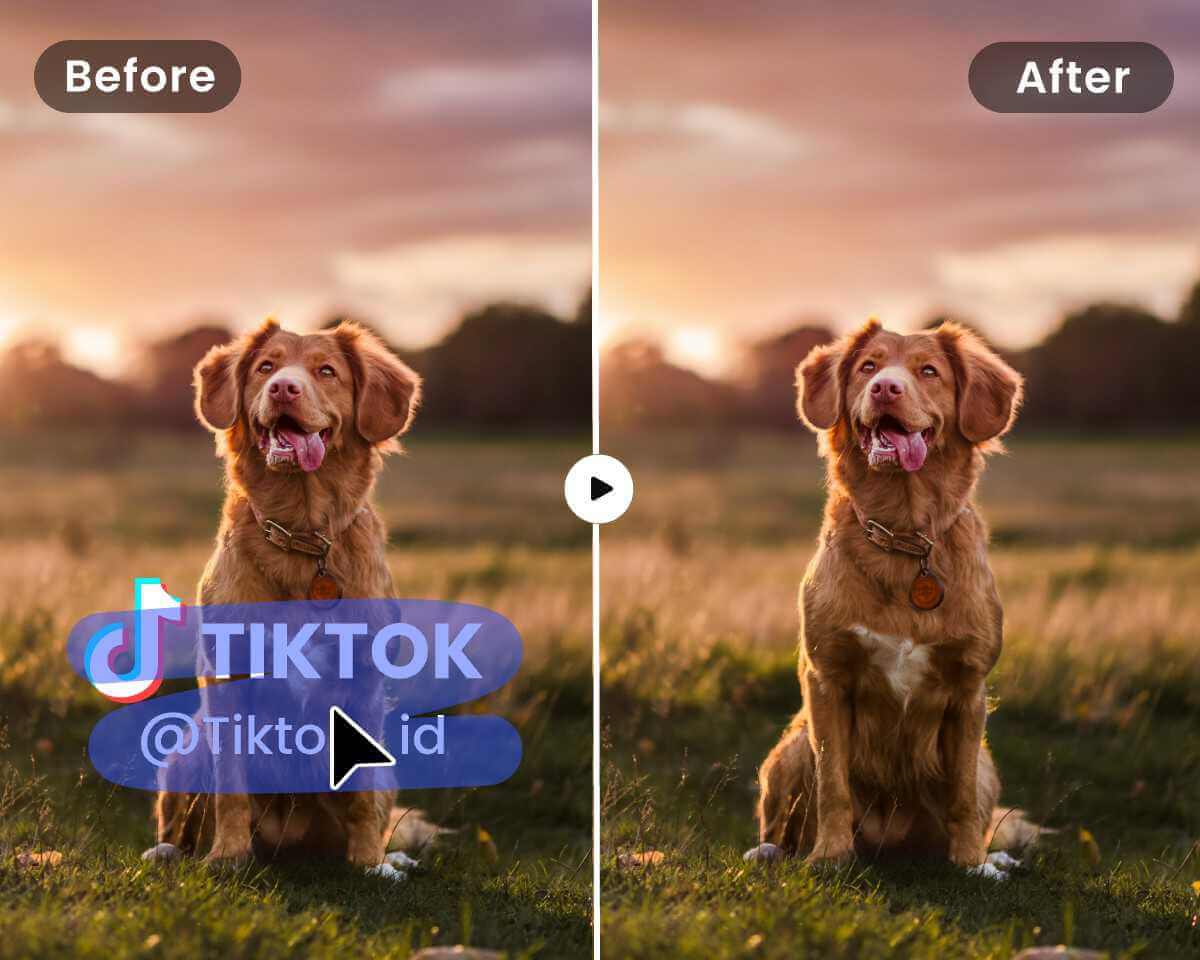
Most AI object removers work like this: you upload your clip, mark the unwanted object, press a button, and wait a bit while the AI generates a clean result. The quality depends on several factors: how complex the background is, how much the camera moves, and how long the object stays visible. Plain skies and walls are easy; a moving crowd or water reflections are harder, but still possible with the right tool and patience.
Choosing the Right AI Tool for Your Skill Level
There are three main routes: quick online tools in your browser, mobile apps for editing on the go, and desktop software for more control. Let us break down which option fits you, depending on your device and how picky you are about the final result.
| Tool Type | Best For |
|---|---|
| Online AI object removers | Beginners who want a quick fix in the browser |
| Mobile apps | Creators editing TikTok/Reels/Shorts on phone |
| Desktop video editors | Users who want more precise, professional control |
1. Online AI Tools (Fastest For Beginners)
Online tools are perfect if you just want to upload a clip, erase a logo or a person, and download the cleaned video. No installation, no steep learning curve. However, you will usually be limited by video length, export quality, or watermarks on free tiers.
Try Fotor Video Object Remover if you want a simple, browser-based way to erase objects from video without touching complex settings. Fotor Video Object Remover
With most of these tools, the basic workflow is the same: upload, brush, preview, export. It is very beginner friendly and usually good enough for social media and client content where you just need that one distraction gone.
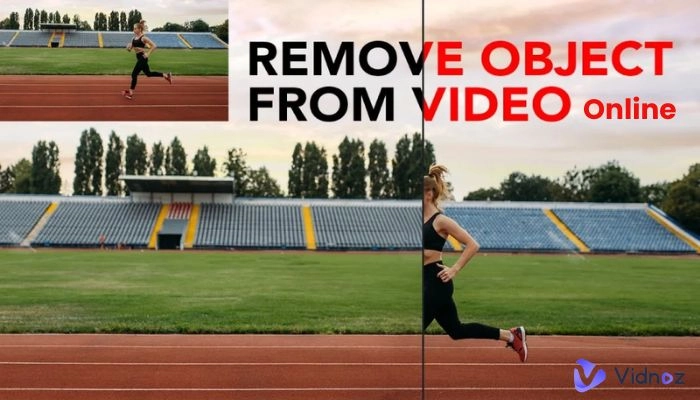
Media.io Online Object Remover lets you choose the time range for moving objects, which helps avoid weird glitches at the start or end of the clip. Media.io Online Object Remover
For higher-resolution clips, the Dzine AI video object remover focuses on clean inpainting up to 4K without turning the background into a blurry mess. Dzine AI video object remover
If you want all of this inside a broader creator workflow, AI Content Creation tools inside UUININ stand out because they combine AI object removal, smart editing, and automated content generation in one place. Instead of downloading from one site, re-uploading to another, and then scheduling on a third, you can clean your clip, cut it to vertical, auto-generate captions, and queue it for posting without leaving the same interface.
2. Mobile Apps (Edit on Your Phone Like a Pro)
If most of your videos are shot and posted from your phone, mobile editors with AI removal tools are a better fit. The big advantage is speed: record, edit, post, all from the same device while you are still in the moment.
The Videoleap remove objects from video feature, for example, lets you brush over people, text, or small items and have them disappear across the clip with just a couple of taps. Videoleap remove objects from video
Mobile apps are ideal for TikTok, Instagram Reels, and YouTube Shorts where your viewers are watching on small screens and minor imperfections are almost invisible. If a tiny patch looks slightly smoothed, nobody will notice at 1080×1920 on a phone held at arm’s length while they scroll.
3. Desktop Software (More Control, Steeper Learning Curve)
If you want pixel-level precision, or you are editing client projects where the bar is higher, desktop tools like Adobe After Effects, Premiere Pro, or DaVinci Resolve are worth learning. They offer advanced masking, motion tracking, and content-aware fill that can handle complicated motion and lighting changes. The trade-off: more buttons, more tutorials, and more time per shot.
Recently, research-level methods like OmnimatteZero show where things are headed: training-free, real-time object removal using video diffusion models that can also handle shadows and reflections. You probably will not use these directly as a beginner, but the same ideas are slowly making their way into the tools you click on in your browser.
If you are curious about the cutting edge, the OmnimatteZero paper gives a glimpse into how future AI tools might handle object removal with fewer artifacts and better temporal consistency. OmnimatteZero
Step-by-Step: Remove an Object from Video with AI
Let us walk through a simple process you can follow, regardless of which AI remover you choose. The exact buttons differ, but the logic is the same. Imagine you want to remove a person walking through the background of your shot.
- Import your clip into the AI tool (online site, app, or desktop software).
- Trim the clip so you only include the part where the object is visible; shorter clips process faster and look cleaner.
- Choose the object removal or erase tool in your editor.
- Brush or lasso around the unwanted object. You do not need to be perfect, but avoid including too much of the background.
- If the tool supports it, set the time range (start and end frames) where the object appears.
- Preview the result. Watch the video in real time and look for flicker, smearing, or warped background elements.
- Refine your mask: adjust the selection, feather edges slightly, or redo the brush if the result looks unnatural.
- Export your cleaned clip in the desired resolution and format (usually MP4 in H.264 for social platforms).
Pro tip: Zoom in while masking, even on your phone. Spending 10 extra seconds outlining the object tightly often saves you multiple re-renders and weird ghosting artifacts later.
On a more integrated platform like UUININ, this workflow becomes part of a bigger pipeline: you can use its AI video editing engine to clean the shot, then immediately generate alternate cuts, titles, and thumbnails with automated content generation. That means every time you fix a clip, you also spin up more content variations for different platforms without juggling exports across multiple apps.
Avoid These Common AI Object Removal Mistakes
AI is powerful, but it is not magic. The most common complaints from beginners are flicker, blurry patches, and bizarre warping in the background. These usually come from rushing the selection or asking too much of the tool in one go.
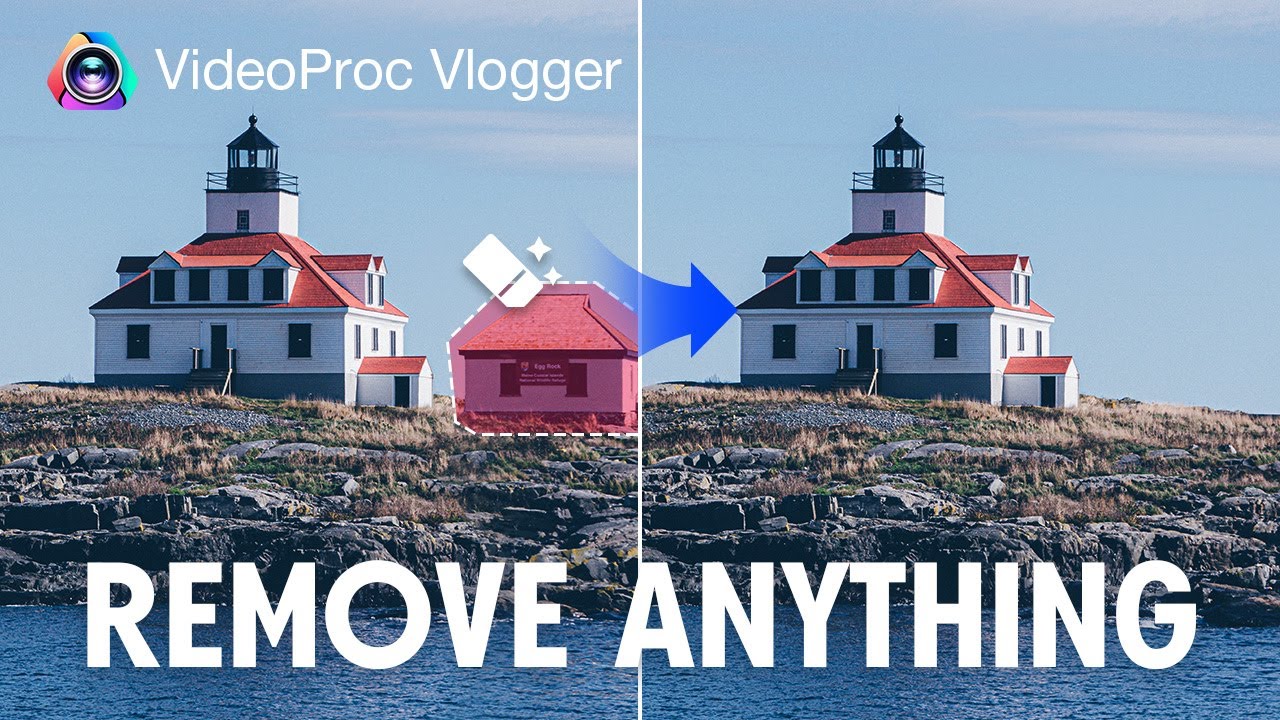
- Removing huge objects at once: Trying to erase a big moving car across a complex scene may produce “melty” backgrounds. Split the clip and process smaller sections.
- Ignoring motion direction: If the camera pans quickly, the AI has to guess a lot. When possible, cut before and after the most intense movement.
- Using giant brushes: A selection that includes half the street will confuse the AI. Use a smaller brush around the object and leave as much clean background as possible.
- Skipping the preview: Always watch the entire clip before exporting. Problems often appear in the middle or near transitions, not just at the beginning.
- Exporting at very low quality: Over-compressing can hide some artifacts, but it can also make the entire video look soft and muddy.
Remember that the AI is trying to reconstruct what it thinks should be there. The more information it has about the surrounding area and the more stable the shot, the better it will perform. Sometimes, simply choosing a slightly different take or trimming a second off the start or end can dramatically improve the result.
Fragmented Tools vs. All-in-One Platforms
Many creators start with a messy workflow: erase a logo on one website, download a compressed file, open a separate editing app for cuts and transitions, then move to yet another tool to add captions and schedule posts. It works, but it costs you time and attention every single day. You spend more effort moving files around than actually creating.

A unified platform like UUININ is designed to fix that by combining AI video editing, image enhancement, audio processing, and automated content generation with publishing tools and analytics. Instead of hopping between 5+ services, you can remove unwanted objects, correct color, generate clips for different platforms, and plan your posting calendar in one place. This matters for busy solo creators and small teams because context switching is the silent killer of productivity: the fewer tabs and exports you juggle, the more time you have for shooting, scripting, and engaging with your audience.
UUININ also layers AI optimization on top of your content pipeline, giving intelligent recommendations on which edits perform best and which cuts resonate with your audience. When you combine smart object removal with data-driven editing decisions, you are not just fixing problems in your footage; you are actively shaping videos that are more likely to be watched, shared, and monetized.
Quick Checklist Before You Hit Export
- Watch the clip at normal speed and at 2x speed to quickly spot flicker or jitter.
- Check the edges of the removed object area; look for stretching, bending, or repeating patterns.
- Scrub through frame by frame at the start and end of the removal zone; these spots often glitch.
- Test on a phone screen if that is where your viewers are; some artifacts vanish at smaller sizes.
- Keep a copy of the original clip; you may need it if you try a different tool or reprocess later.
Is AI object removal good enough for client work?
For many social media and marketing projects, yes. Online tools and mobile apps are usually good enough to remove stray people, logos, or clutter. For high-end commercials, long-form content, or shots with complex motion and lighting, you will get more reliable results with desktop software like After Effects or DaVinci Resolve, possibly combined with manual masking and tracking.
Do I need a powerful computer to use AI video object removal?
Not necessarily. Browser-based tools run heavy processing in the cloud, so even modest laptops and tablets can handle them. Mobile apps rely on your phone’s hardware but are optimized for it. Desktop tools can benefit from a stronger GPU, but for short clips, even mid-range machines work fine—you just wait a bit longer for renders.
Can AI remove objects from very long videos?
Technically yes, but it can be slow, and artifacts become more likely over long durations with lots of motion. A better workflow is to cut your video into smaller segments that contain the unwanted object, process those segments, and then stitch them back together. This reduces processing time and makes it easier to redo a small section if something looks off.
What if the background is very detailed or moving?
Busy backgrounds (waves, crowds, flashing lights) are harder because the AI has to invent more missing information. You can try multiple tools, tighten your selection, or shorten the affected section. In extreme cases, consider reframing the shot, adding overlays like text or graphics to cover small areas, or using professional masking techniques in tools like After Effects.
How can I integrate object removal into a full content workflow?
Think of object removal as one step in your pipeline, not the whole job. Clean the clip, then handle cutting, color, sound, captions, thumbnails, and scheduling. All-in-one ecosystems such as UUININ make this much smoother by combining AI video editing, automated content generation, and multi-platform publishing in one place. Instead of bouncing between tools and losing track of versions, you can manage everything from raw footage to final monetized post inside a single, intelligent platform.