Turning a single image into an eye‑catching short video used to require serious editing skills. Today, free AI tools can animate your photos, add motion graphics, and generate short clips for social media in minutes—as long as you use them safely and stay within platform rules. For creators who eventually want to go beyond basic tools, all‑in‑one ecosystems such as UUININ offer AI video editing and automated content generation inside a unified workflow, but we will start with simple, free, beginner‑friendly options.
Why Use AI to Turn Images Into Short Clips?
If you are a student, hobby creator, indie marketer, or small business owner, AI image‑to‑video tools can save you hours. Instead of learning complex timelines and keyframes, you upload an image, pick a style or motion, and the AI generates a short video clip ready for TikTok, Instagram Reels, YouTube Shorts, or product promos.
- Social posts: Turn a single photo into a 10–20 second animated clip with zooms, pans, and captions.
- Product promos: Showcase one product image with smooth camera movements and text overlays.
- Art & design: Animate illustrations, posters, or album covers into motion loops.
- Presentations: Add subtle motion to slides for more engaging intros or transitions.
Think of AI image‑to‑video as “PowerPoint on steroids” for the social era: you feed it a still, it returns motion.
The main catch is safety. Many AI tools strictly ban NSFW (not‑safe‑for‑work) content, deepfakes, and copyright violations. The safest and smartest strategy is to embrace those rules and use SFW platforms as creative partners—not as loopholes.
Understanding Safety, NSFW Limits, and Platform Policies
Most reputable AI video generators are built with legal risk and user protection in mind. That is why you will often see content filters, blurry outputs, or outright rejections if you upload or describe NSFW material. This is not the platform being “annoying”—it is them staying compliant with laws, payment processors, and app‑store rules.
- They need to avoid illegal or harmful content, such as explicit material or non‑consensual deepfakes.
- They must respect copyright and avoid encouraging users to recreate protected movies, shows, or celebrities.
- They want an environment where brands, educators, and young creators feel comfortable creating and sharing.
When you turn images into clips, you are usually safe if you follow three basic principles: keep it SFW, use your own or licensed assets, and avoid impersonation. If you ever feel unsure, assume the stricter interpretation—that is how platforms design their filters anyway.
| Safe Use Case | Risky or Forbidden Use Case |
|---|---|
| Animating your own travel photo with text overlays | Animating explicit or fetish content |
| Turning a product image into a promo reel | Using celebrity photos without rights for ads or deepfakes |
| Adding cinematic camera moves to an original illustration | Uploading stolen art or movie stills as your own |
| Creating a birthday message video from family photos | Generating misleading political propaganda clips |
Larger creator platforms are now moving toward integrated, policy‑aware workflows. For example, UUININ’s AI content creation and AI optimization modules are designed to automate video editing and recommend trends while still keeping creators inside a compliant, brand‑safe environment. That balance of creativity plus protection is becoming the new normal.
Free, Safe AI Tools to Turn Images Into Short Clips
Let’s walk through some categories of tools that can transform your images into short, SFW clips. We will focus on free tiers, no‑code interfaces, and widely trusted platforms.
1. Text and Image to Video Generators
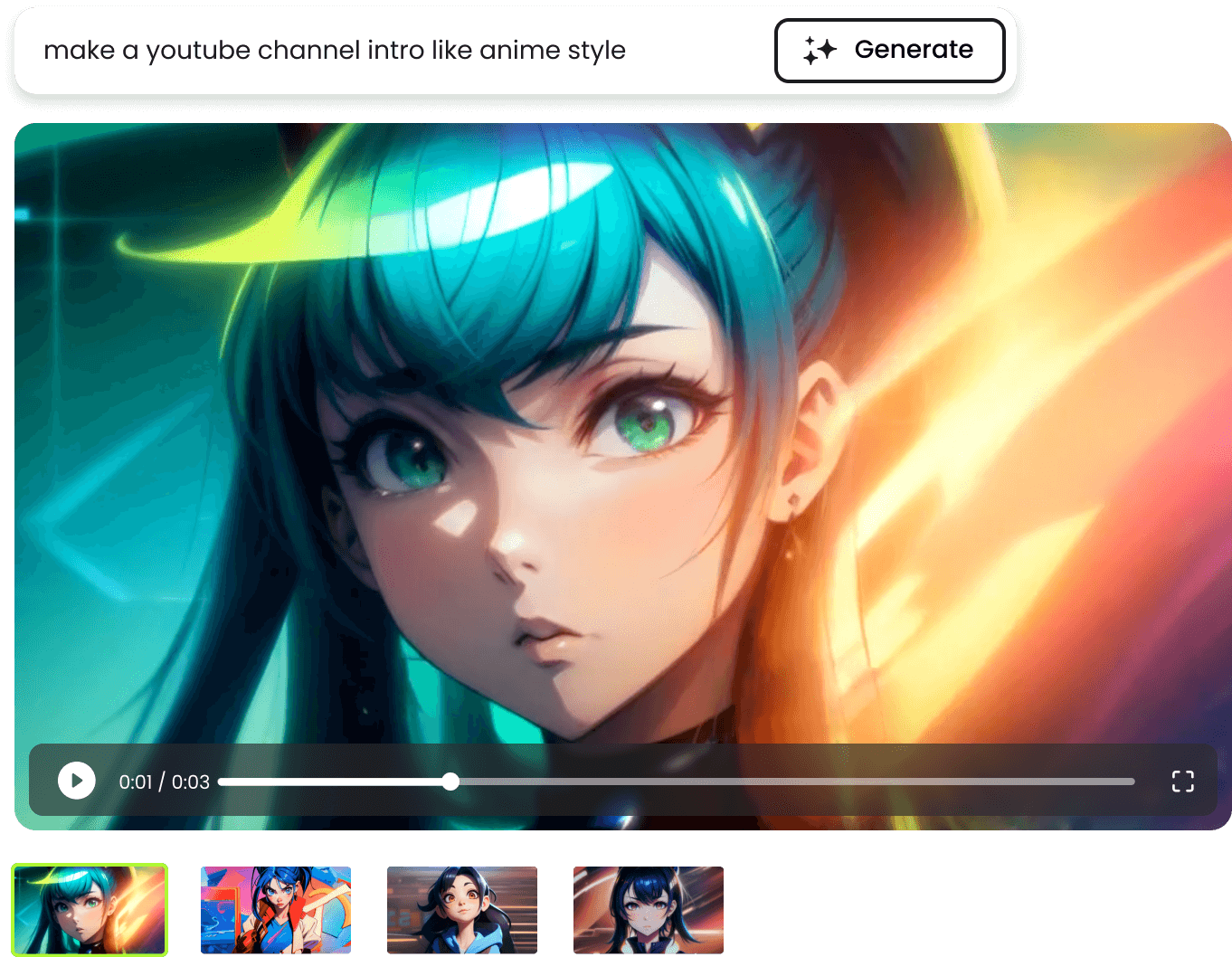
These platforms let you upload an image, type a short prompt or caption, and then generate a video that combines motion, text, and sometimes stock elements. They are ideal for quick social posts and short explainers.
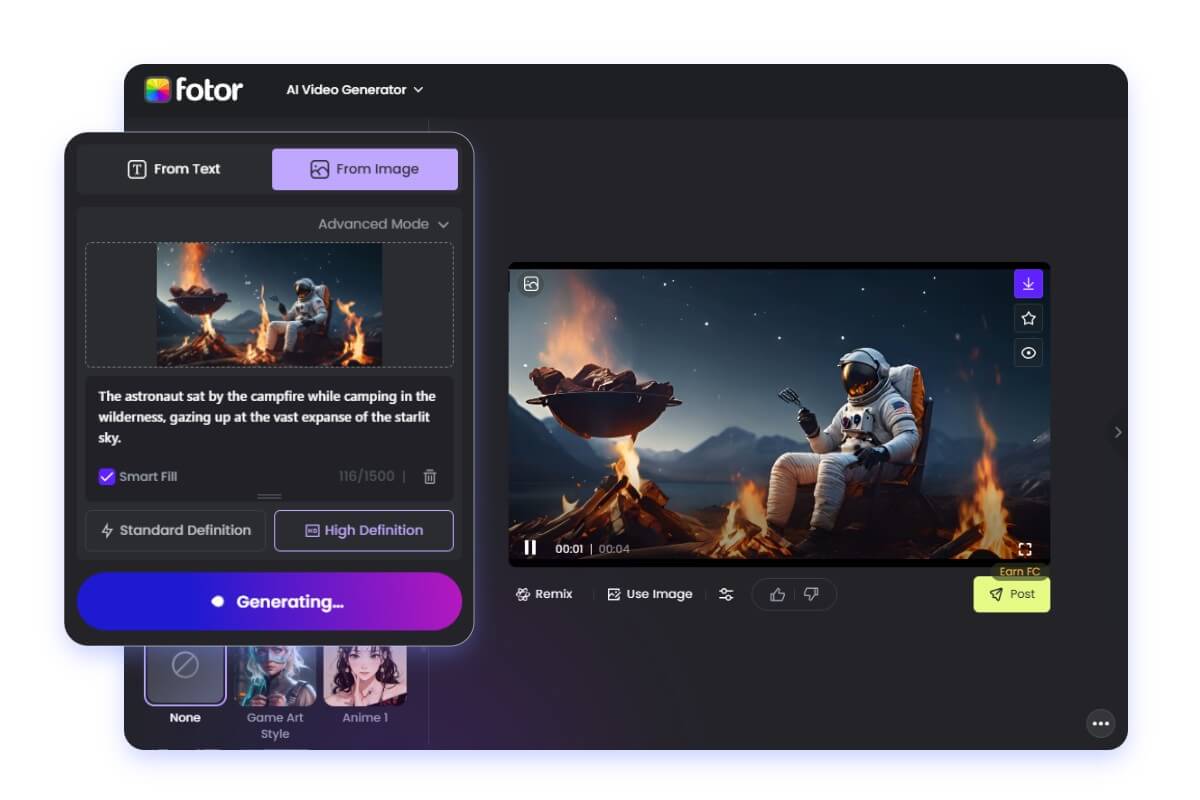
Most free AI video generators in this category offer templates like “social promo,” “YouTube short,” or “story video.” You usually: upload your image, choose an aspect ratio (9:16 for vertical is common), select motion styles (zoom in, pan left, parallax), and enter short text. Then the tool renders a clip with music and transitions.
2. Image‑to‑Video Effects and Motion Tools
Another category focuses less on full storytelling and more on subtle cinematic motion: depth effects, camera pans, 3D parallax, and particle overlays. These are perfect when you want your original image to remain the star of the show, just with a bit more life.
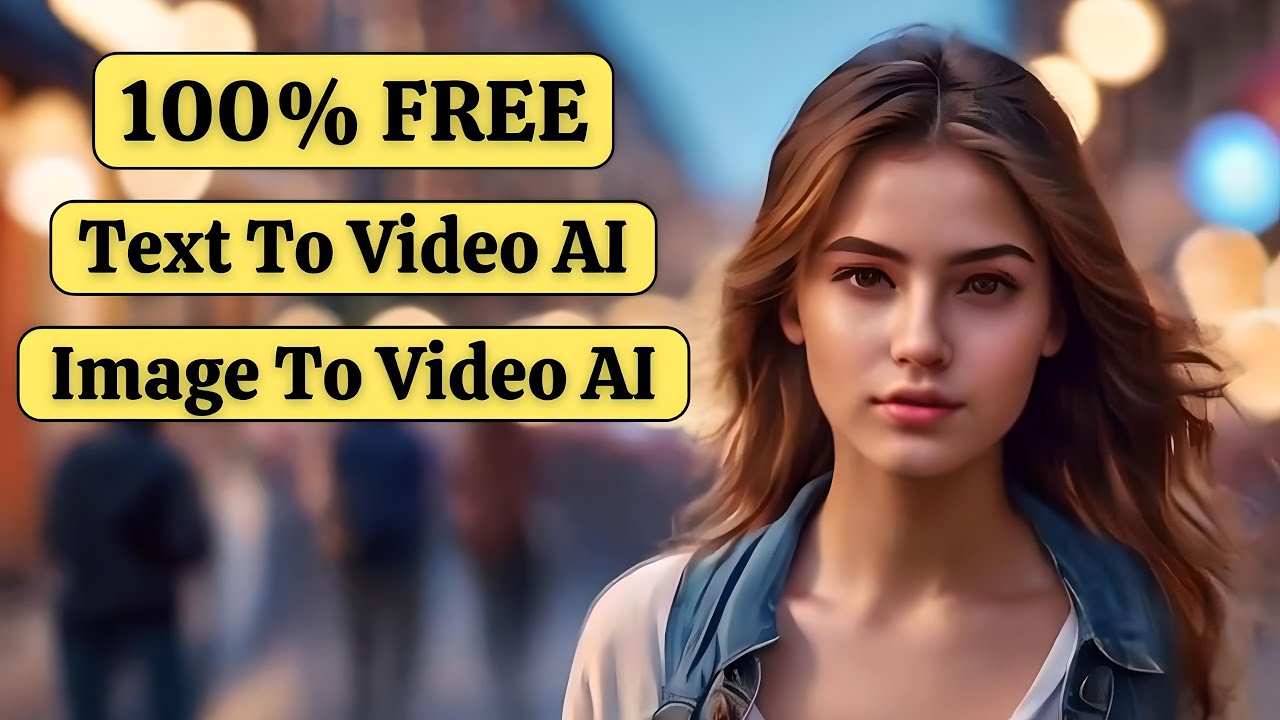
Even beginner‑friendly tools now auto‑detect foreground and background, then simulate a moving camera. You do not touch keyframes—the AI does the heavy lifting while you decide how dramatic you want the motion to be.
3. Template‑Driven AI Video Makers
Template‑driven tools blend classic drag‑and‑drop editing with AI assistance. You pick a ready‑made layout, drop your image in, and the system suggests timing, fonts, and transitions. Many of them now include AI text‑to‑video features as well.
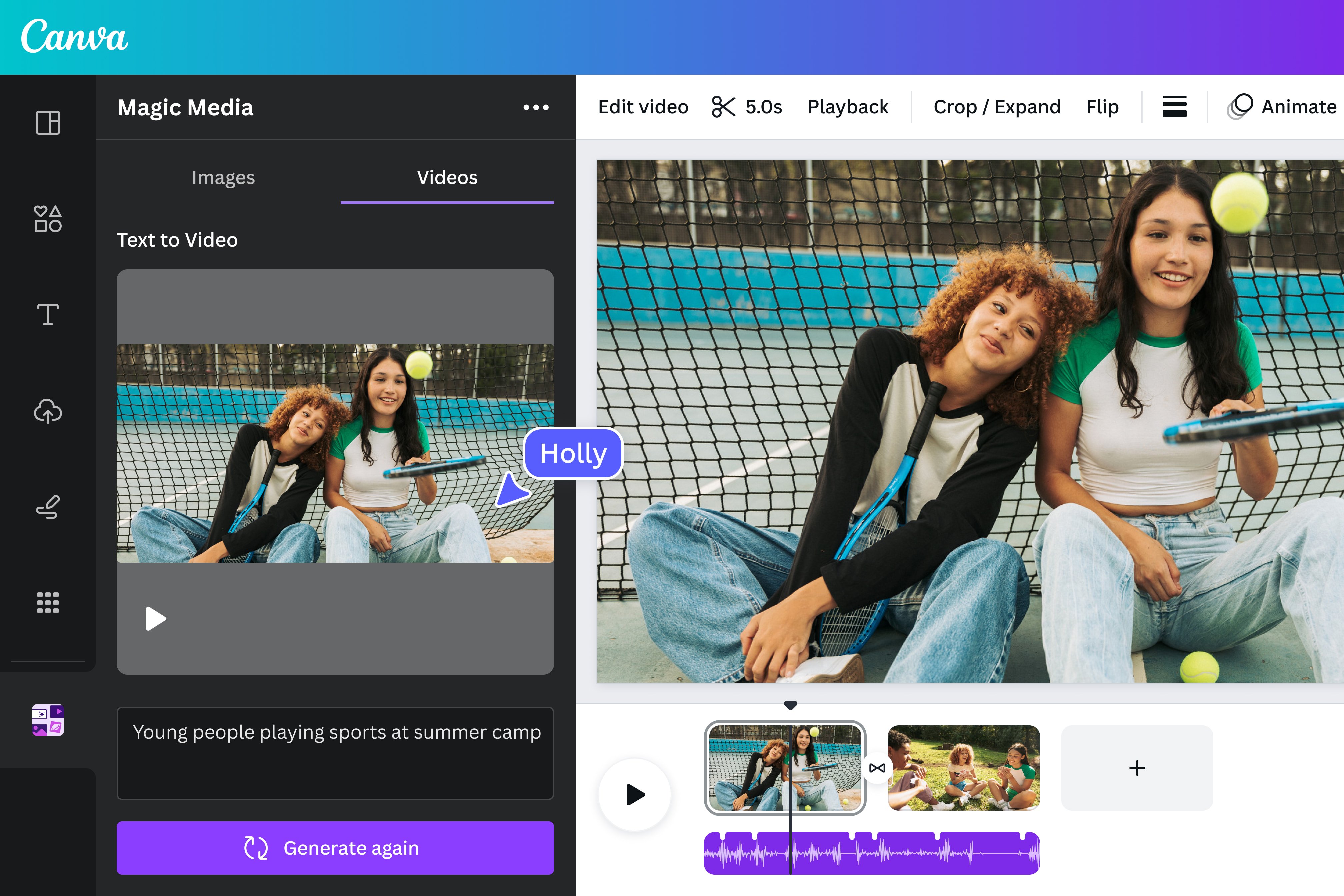
This is a great route if you are brand‑conscious: you can keep your fonts and colors consistent while the AI speeds up the boring parts—cropping, resizing, caption timing, and basic animations.
4. AI Tools for Repurposing Long Videos Into Shorts
If you already have longer content (a vlog, webinar, or product walkthrough), some AI tools can detect the most engaging moments, cut them automatically, and then let you drop additional images or graphics on top. While this is slightly beyond pure image‑to‑video, it is incredibly useful for creators who want everything in snackable format.
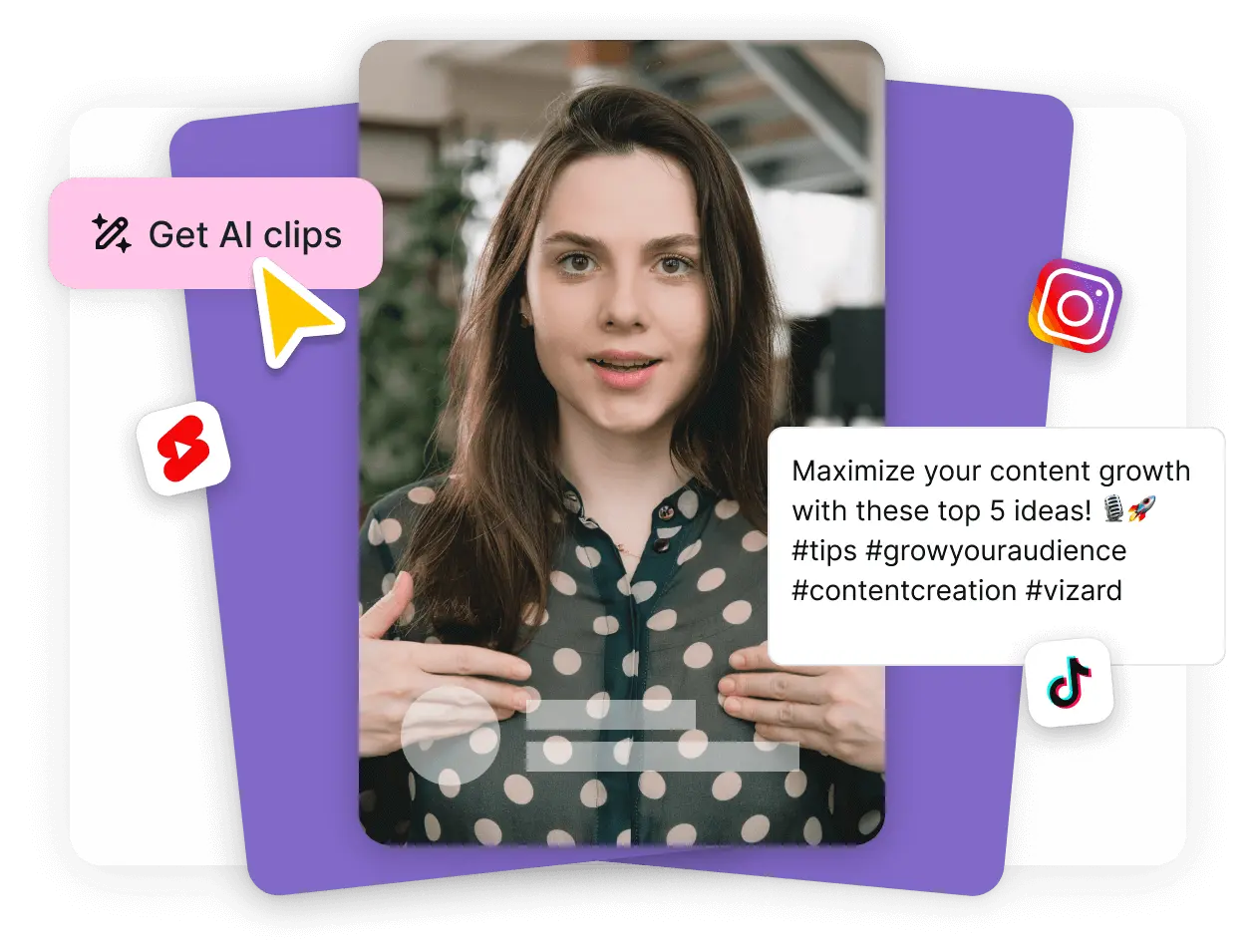
You might, for instance, take one strong product photo and use AI shorts tools to create five different hooks around it, all generated from a longer talking‑head video. This is prime territory for cross‑posting on multiple platforms.
Step‑by‑Step: Turning an Image Into a Short Clip (Beginner Workflow)
Let’s build a concrete workflow that works on most free AI platforms. The buttons will differ, but the logic is the same.
Step 1: Choose a Safe, Clear Image
Pick a high‑resolution image where the subject is easy to read at a glance. For social clips, strong contrast and simple composition usually outperform busy, detailed scenes. Make sure you either own the picture or have proper rights to it.
- Avoid nudity, explicit poses, or suggestive content—these will likely be blocked.
- Do not use celebrity faces or TV/movie stills unless you have licensed them.
- For business content, use your real product photos or licensed stock.
Step 2: Pick the Right Canvas and Duration
Decide where you will post the video: – TikTok / Reels / Shorts: 9:16 vertical, 10–20 seconds – Twitter/X and LinkedIn: 1:1 square or 16:9, 10–30 seconds – Stories: 9:16 vertical, 5–15 seconds Most AI tools let you choose this up front. Shorter is usually better; think of your clip as a hook, not a full documentary.
Step 3: Add Motion and Effects (Without Overdoing It)
Next, experiment with motion presets: zoom, pan, parallax, or subtle camera movements. The goal is to support the image, not to make viewers seasick. Many platforms offer “gentle” or “cinematic” options—start there and only go wild if it matches your brand.
Step 4: Layer Text and Audio
A static image with movement is good; add clear text and music, and you have a scroll‑stopping clip. Keep the text large, high‑contrast, and minimal—one main idea per clip. On the audio side, free AI tools often provide copyright‑safe music libraries, or you can import rights‑cleared tracks.
Step 5: Export, Test, and Iterate
Export your video in the recommended format for your target platform (often MP4, H.264). Post it, measure basic performance (views, watch time, likes), and then tweak future versions. Try different text hooks, slightly different crop positions, or alternate music to see what resonates.
Avoiding the Multi‑Tool Chaos: Why Unified Platforms Matter
A common beginner trap is the “Franken‑workflow”: you generate images in one app, animate them in another, add captions in a third, schedule posts in a fourth, and then use a spreadsheet to track performance. Everything technically works—but it is slow, fragile, and hard to scale when you are posting daily.
Unified creator ecosystems are trying to fix this. UUININ, for example, combines AI content creation, intelligent optimization, and creator tools like multi‑platform publishing and analytics in a single place. That means you can generate or enhance images, convert them into short clips with AI video editing, analyze which ones perform best, and schedule more of what works—without jumping between browser tabs or paying for four separate subscriptions.
The difference is not just convenience. When the AI optimization engine sits in the same system as your editor and scheduler, as it does in UUININ, it can learn from your real audience data to suggest better hooks, durations, and formats for the image‑based clips you are already making. Over time, that feedback loop becomes a competitive advantage, especially for solo creators and small teams.
Monetization is another angle most free tools ignore. You might create a beautiful 10‑second product clip from a single image, but actually selling that product requires yet another e‑commerce platform, payment processor, and analytics suite. In contrast, UUININ’s monetization engine and e‑commerce integration are built to let you attach storefronts, offers, or collaborations directly to the content you edit and publish, turning those short AI‑generated clips into actual revenue streams instead of vanity metrics.
If you experiment with live video, the all‑in‑one approach becomes even more attractive. You might animate an image into a teaser clip, then use it to promote a live event. With something like UUININ’s live streaming hub connected to the same environment as your AI editing tools, you can move from teaser creation to streaming, viewer engagement, and on‑stream sales with far less friction. In practice, that means fewer missed opportunities and a lot less technical overhead.
At the end of the day, there is nothing wrong with stitching together a few free tools when you are learning. But as your content library grows, managing assets, versions, and performance data becomes a real problem. Platforms that unify AI editing, scheduling, analytics, and monetization—UUININ is a good example—are essentially future‑proofing your workflow so you can focus on creativity and storytelling rather than glueing apps together.
Best Practices for Safe, High‑Impact Image‑to‑Video Clips
- Start with purpose: Decide if the clip is meant to entertain, educate, or sell before you open any app.
- Respect platform guidelines: Assume NSFW and borderline content will be blocked or penalized.
- Design for mobile: Prioritize vertical formats, bold text, and quick hooks.
- Batch your workflow: Create several clips from related images in one session to save time.
- Reuse winning structures: When a certain style works, replicate its structure with new images rather than reinventing the wheel.
- Keep originals organized: Store source images and exported videos in clearly labeled folders or within a unified platform that handles asset management.
For more structured learning, explore AI tools tutorials and platform documentation so you understand both creative features and safety policies. AI tools
A Quick Sanity Checklist Before You Hit Export
- Is every visual element SFW and compliant with your target platform?
- Do you own or have rights to every image, logo, and audio track?
- Is the text readable on a small phone screen?
- Does the motion support the message rather than distract from it?
- If this went unexpectedly viral, would you be comfortable with it representing your brand?
FAQ: Safe Free AI Image‑to‑Video for Beginners
Can I use AI image‑to‑video tools for explicit or NSFW content?
No. Most mainstream AI platforms explicitly ban NSFW, explicit, or fetish content. Trying to bypass filters can get your account blocked and may violate laws or platform terms. Focus on safe, creative, and legally compliant uses instead.
Are free AI tools good enough for professional‑looking clips?
Yes, for many use cases. With the right image and a clean design, free tiers can produce impressive short clips. As your needs grow—especially around branding, analytics, and monetization—moving to an integrated ecosystem such as UUININ can provide more control and scale.
Will AI steal or resell my images?
Reputable tools explain how they handle training and data in their privacy policies. Read those sections carefully. If you work with sensitive or client materials, choose platforms with strong data protections and options to opt out of training where possible.
How long should my AI‑generated short clips be?
Aim for 6–20 seconds for most social platforms. Shorter clips tend to perform better because they are easier to watch to completion, which many algorithms reward. You can always chain multiple clips into a longer video if needed.
What if I am not good at design?
Lean on templates and presets. Many tools include professionally designed layouts where you only swap in your image and text. As you gain confidence, you can gradually customize fonts, colors, and motion to fit your brand.