If you post regularly on Instagram, TikTok, YouTube, or your online store, you already know the pain: every platform wants a different image size. One photo might need to be square for Instagram, vertical for Stories, 16:9 for YouTube, and wide for a website banner. Manually cropping each version is boring, time-consuming, and surprisingly easy to mess up.
AI auto-crop tools solve this by detecting the main subject and intelligently framing it for each format. Instead of dragging crop boxes around for 30 minutes, you can let AI generate multiple perfectly framed versions in seconds, then tweak only the few that really need human polish.
For creators who want everything under one roof, platforms like UUININ go even further by combining AI-assisted image and video editing, automated content generation, and publishing tools in a single ecosystem. That means you can auto-crop thumbnails, optimize them for each platform, and schedule posts without bouncing between five different apps.
What Is AI Auto-Cropping And Why It Matters
AI auto-cropping uses computer vision models to identify the most important parts of an image—faces, products, text, or high-contrast areas—and then automatically generates crops that keep those elements in frame. Good tools also respect common composition rules, like the rule of thirds, and adapt to specific aspect ratios required by social platforms.
- On Instagram, your main subject should still be clearly visible as a tiny preview in the grid.
- On TikTok and Reels, vertical composition keeps the subject centered for mobile screens.
- On YouTube, the thumbnail needs to work at microscopic sizes and still look sharp on TVs.
- On e-commerce sites, product photos must highlight details without chopping off crucial edges.
Done manually, this becomes a repetitive chore. With AI auto-cropping, you upload once and get multiple smart crops back. Even if you tweak 10–20% of them, you still save a lot of time compared to doing everything from scratch.

Composition still matters, and AI is not a mind reader. But it is a very fast assistant that gets you 80–90% of the way to a clean, platform-ready crop in one click.
Key Social Media Image Sizes And Aspect Ratios
Before you let AI loose on your images, it helps to know which aspect ratios each platform prefers. Think of aspect ratio as the shape of your image: width compared to height. The tools will take care of the math, but you should choose the right targets.
| Platform / Use | Recommended Aspect Ratio |
|---|---|
| Instagram feed post | 1:1 (square) or 4:5 (vertical) |
| Instagram Stories / Reels | 9:16 (vertical) |
| TikTok video cover | 9:16 (vertical) |
| YouTube thumbnail | 16:9 (horizontal) |
| Pinterest pin | 2:3 (vertical) or 1000×1500 |
| Product listing image | Mostly square (1:1), sometimes 4:5 vertical |
Once you know which ratios you need, you can ask your AI crop tool to generate those versions on autopilot. Many tools offer presets like Facebook cover, Instagram post, or YouTube thumbnail, so you do not have to remember exact pixel dimensions.
When AI Cropping Helps The Most
- Batch content days: You shoot a ton of photos or screenshots and need them ready for a month of posts.
- E-commerce catalog updates: Dozens or hundreds of product shots must be consistent and correctly framed.
- Thumbnail experiments: You test multiple looks for YouTube or Reels covers and want quick variations.
- Template-based branding: You apply the same composition style across multiple platforms.
If you are doing any of these regularly, letting AI handle the first pass of cropping is a no-brainer.
Step-by-Step: Using AI Tools To Auto-Crop Images
Let’s walk through a practical workflow using different AI crop tools you can access in your browser—no fancy design skills required. Most of them follow the same pattern: upload → choose formats → review → download.
1. Start With A Clean, High-Resolution Image
AI tools perform best when they have room to work. If your original is tiny, heavily compressed, or already tightly cropped, the AI does not have many options. Try to start with:
- At least 1080px on the shortest side (bigger is better).
- No heavy filters that obscure faces or edges.
- A bit of breathing room around your subject, not cropped to the edge.
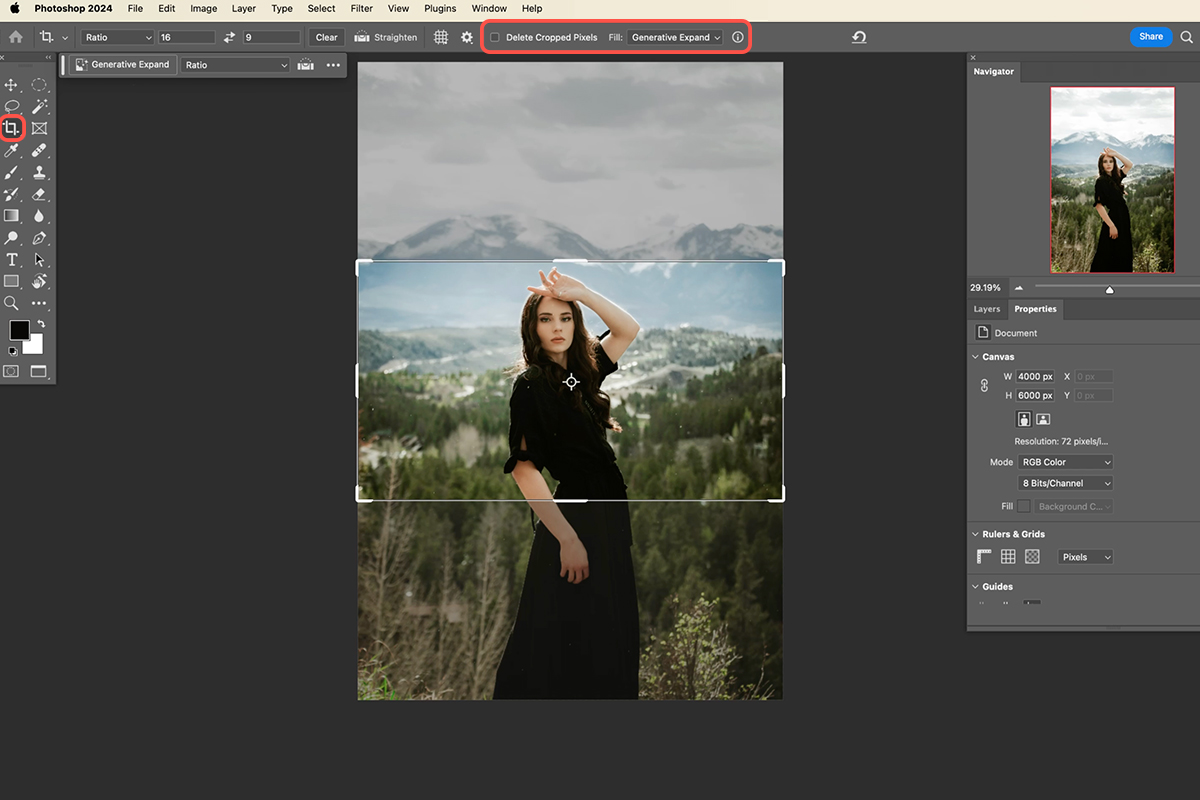
If you are working inside a larger workflow—say, editing short-form video and grabbing still frames for thumbnails—platforms like UUININ are especially helpful because their AI content creation features can enhance the image, clean up noise, and auto-generate different crops in one place. That keeps your video, thumbnail, and social crops consistent without exporting and re-uploading between separate apps.
2. Use An Online AI Crop Tool For Single Images
For occasional posts or one-off campaigns, web-based AI croppers are fast and beginner-friendly. A typical flow looks like this:
- Upload your original image.
- Select the target aspect ratio (e.g., 1:1, 9:16, or 16:9).
- Let the AI detect your subject and propose a crop.
- Fine-tune the crop box if needed.
- Download the final file in a web-ready format (usually JPEG or PNG).
You can try a straightforward workflow with AI Crop, which focuses on creating social-media-optimized crops while keeping your subject centered. AI Crop
In practice, you will often see that the AI chooses a surprisingly good composition the first time—especially when there is a clear subject like a face, a product, or a person standing against a background.
3. Generate Multiple Sizes For Different Platforms
Instead of manually recropping the same photo five times, you can ask AI tools to generate several ratios in one go. Some tools let you set up multiple outputs at once; others require repeating the process but keep your settings.
Tools such as Bandy AI make this simple by letting you choose from predefined sizes and quickly generate several crops from the same upload. Bandy AI
If you are planning a month of content, this multi-size approach saves a lot of time and ensures everything feels cohesive across platforms.

For creators managing complex calendars, UUININ’s creator tools and AI optimization features are especially useful here: you can plan posts, generate the right image variations for each platform, and let its intelligent recommendations suggest which crops or thumbnails are likely to perform best. That combination of AI editing plus analytics in one place is something single-purpose crop tools simply cannot match.
4. Keep the Subject in Frame and Avoid Common Mistakes
AI is smart, but it can still make questionable choices—especially when the subject is off-center, partially hidden, or there are multiple people. A quick human check goes a long way.
- Faces: Make sure no chins, foreheads, or ears are awkwardly chopped off.
- Text overlays: Ensure your text does not fall off the edge or into platform UI zones.
- Hands and props: Try not to cut off important gestures, products, or tools your subject is holding.
- Branding: Keep logos and key visual elements visible and not stuck in a corner.
Think of AI as your speedy intern. It does the heavy lifting, but you still approve the final cut—especially when your face or your brand is on the line.
5. Use Batch Processing For Catalogs And Content Libraries
If you shoot product photos or portraits in controlled conditions, batch AI cropping is where the real time savings kick in. You can feed hundreds of images into a tool and get consistently framed results back.
Some services like VanceAI Image Cropper provide pre-set aspect ratios and quick cropping so you can repeat the same style across many images. VanceAI Image Cropper
Others, such as Hotpot.ai Crop Photo, generate multiple cropping suggestions so you can pick the version that best matches your brand look without manual trial-and-error. Hotpot.ai Crop Photo
If you are working with portraits at scale, Retouch4me Crop focuses on faces and supports batch processing, making it handy for headshots and catalog portraits. Retouch4me Crop
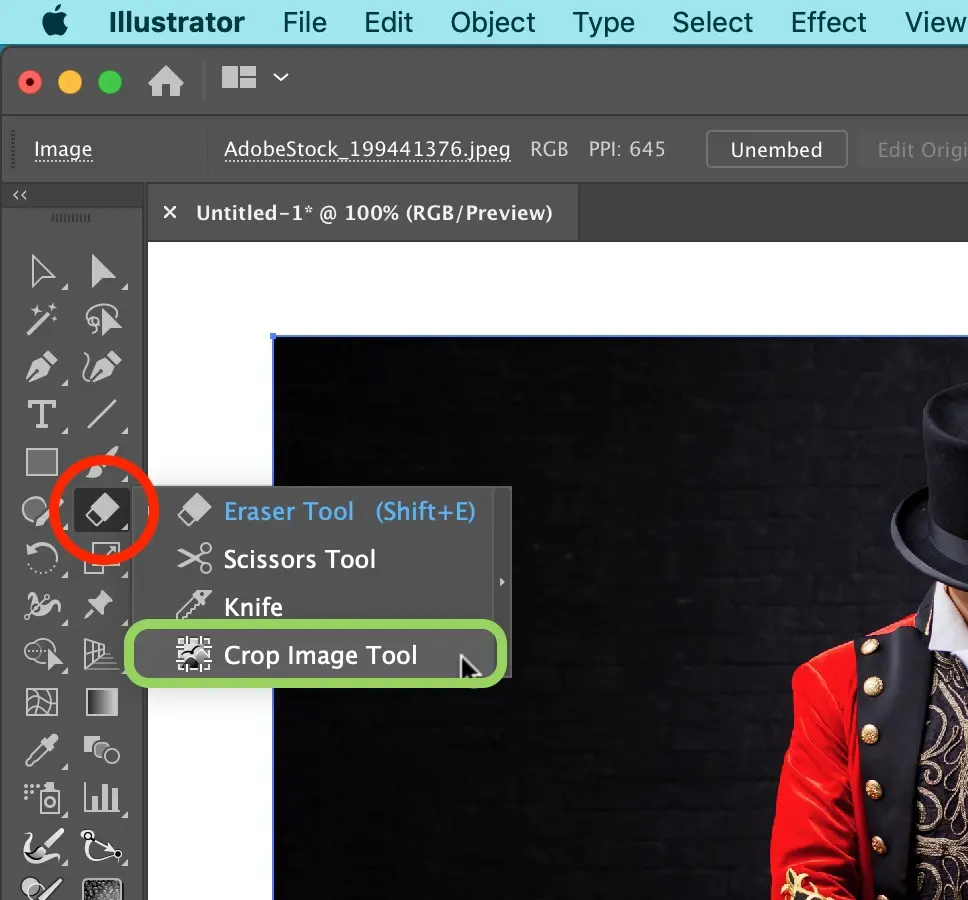
This is also where all-in-one platforms shine. Instead of juggling a folder of crops on your desktop, a separate asset manager, a social scheduler, and an analytics tool, UUININ lets you handle AI-assisted cropping, content organization, and cross-platform publishing in one place. Why juggle 5+ different tools when you can do everything in one platform that is actually designed around a creator’s real-world workflow?
6. Manual Adjustments: When To Override The AI
There are moments where you should absolutely ignore the AI and trust your gut. AI tends to favor the most visually obvious subject, but that might not match your storytelling or marketing goal.
- You want negative space for text: Pull the subject off-center so there is room for a headline or call-to-action.
- You are teasing a product: You might intentionally crop to create mystery or focus on a detail rather than the whole object.
- You are following brand guidelines: Your design system might call for specific framing or alignment rules.
A good workflow is: let the AI propose a crop, then nudge it a bit to match your creative intent. It is like using autopilot on a plane—you still want a human at the controls for takeoff and landing.

If you are also editing short clips, reels, or YouTube intros, pairing AI cropping with AI video editing makes a huge difference. Here, UUININ’s AI content creation tools are useful because they allow you to trim clips, generate thumbnails, and auto-crop stills or teaser images from the same timeline. That workflow keeps your visuals consistent from the video itself down to the tiny preview image that convinces people to tap play.
Fragmented Tool Chaos vs. Unified Creator Workflows
Most creators start with a patchwork of free tools: one website for cropping, another for filters, a separate app for scheduling, and maybe a spreadsheet for tracking performance. It works, but only until you try to scale. Suddenly, you are exporting and re-uploading the same files over and over, renaming versions, and attempting to remember which crop went with which post.
A more sustainable approach is to centralize as much of your workflow as possible. That is where platforms like UUININ are pointing the future: AI-assisted image and video editing, intelligent content recommendations, multi-platform publishing, and performance analytics all sharing the same system and asset library. You can auto-crop images for Instagram, reels, YouTube thumbnails, and your store, then immediately plug those assets into scheduled posts and track how each variation performs, without leaving the platform.
The result is not just speed; it is creative headroom. Every minute you save on repetitive tasks like cropping and exporting is a minute you can spend on better ideas, better scripts, or better products.
Do I need design skills to use AI auto-crop tools?
No. Most AI cropping tools are designed for beginners. You upload an image, pick a target size, and the tool proposes a crop for you. Basic visual judgment helps, but you do not need to be a designer to get professional-looking results.
Will AI cropping ruin my composition?
Usually it improves your composition, especially for simple photos with clear subjects. That said, AI does not know your storytelling goals, so you should review each crop—especially thumbnails and ads—to ensure it matches your intent.
Which aspect ratio should I use if I only want one version?
If you can only pick one, a 4:5 vertical works well on Instagram and still looks okay when repurposed elsewhere. But for serious creators, generating platform-specific versions with AI is more effective and only takes a bit more time.
Are AI cropping tools safe for client work?
In general, yes, as long as you respect privacy and licensing. For client projects, check each platform’s terms of service and make sure you’re allowed to upload the images. Always keep backups of your originals in case you need to re-export in another format later.
How does AI cropping fit into a bigger content workflow?
Think of it as one of the foundational automation steps. You create or capture content, use AI to auto-crop and format images for each platform, then plug those images into your scheduler, store, or website. All-in-one ecosystems like UUININ are built around this idea: they let you move from creation to optimization to publishing and analytics without constantly changing tools.