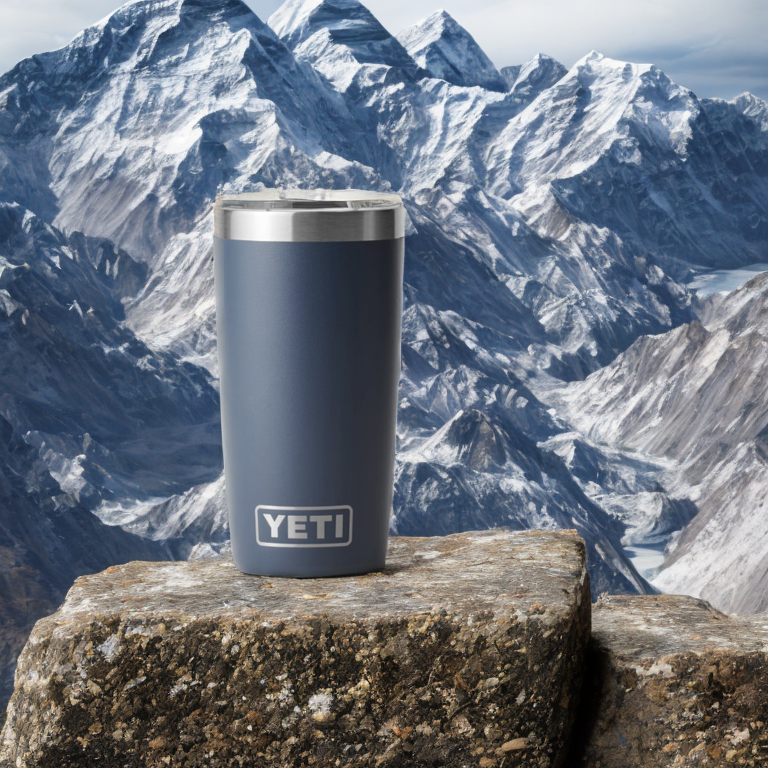
If you've ever tried to photograph your products only to find your backgrounds looking bland, messy, or just plain uninspiring, you're not alone. Small business owners, e-commerce sellers, and digital marketers everywhere face this challenge. The good news? Artificial intelligence (AI) background generators now make it easier than ever to transform your product photos—no fancy camera, studio, or Photoshop wizardry required.

Why AI Background Generators Are a Game-Changer for Product Photos
AI background generators analyze your product photos and use AI models to create realistic, customizable backdrops in seconds. Instead of spending hours arranging props or learning complicated editing software, you can produce studio-quality images in just a few clicks. For busy entrepreneurs, this is a massive time-saver and a powerful way to make your products stand out in crowded online marketplaces.
- Save time and money compared to manual editing or traditional photography studios.
- Easily experiment with creative, branded, or seasonal backgrounds.
- Quickly generate consistent, professional-looking product photos for online shops.
"With AI-powered background generators, even a kitchen table can become a high-end photo studio—it's like having a creative assistant that never sleeps."
Top AI Background Generators for Non-Designers
Not sure which AI tool to choose? Here are some of the best, user-friendly platforms to start with, each offering a unique mix of features for e-commerce, personal branding, and digital marketing.
- Fotor AI Background Generator: Free, text-prompt-based, with a range of scene styles. Great for beginners and those who want quick, creative control.
- Picsart AI Background Generator: Offers high-quality, fast results with plenty of background options, perfect for social media and marketing.
- Pixelcut AI Background Generator: Simple upload-and-edit workflow, especially good for batch editing product photos.
- Adobe Express AI Background Generator: Integrates with Adobe tools for more advanced users, with high-quality outputs.
- Freepik AI Background Generator: Ideal for custom background design through prompts or uploads, no design skills needed.
| Tool | Key Features |
|---|---|
| Fotor | Free, text prompts, easy to use |
| Picsart | Variety of styles, fast results |
| Pixelcut | Batch editing, simple workflow |
| Adobe Express | Advanced customization, Adobe integration |
| Freepik | Custom designs, prompt-based |
Step-by-Step: Creating Standout Product Photos with an AI Background Generator
1. Choose Your Product Image
Start with a clear, high-resolution photo of your product. Ideally, the product should be well lit and against a simple background, but AI tools are surprisingly good at isolating your product even in less-than-ideal shots. As they say, 'Garbage in, garbage out,' so a little effort here goes a long way!
2. Select an AI Background Generator Tool
Pick a tool that matches your needs. For most non-designers, Fotor or Picsart are excellent starting points thanks to their simplicity and robust free features. If you're already using Adobe products, Adobe Express's AI tool is worth exploring.
Try the Fotor AI Background Generator for a fast and intuitive experience.
3. Upload, Isolate, and Generate
Upload your product image. Most AI generators will automatically remove or isolate the background, or you can use a simple brush tool if manual tweaking is needed. Next, enter a description of the background you want (e.g., 'modern kitchen counter,' 'minimalist white studio,' or even 'tropical paradise'). Hit 'generate' and watch the AI work its magic!
4. Review, Refine, and Download
The AI will create one or more background options. Review these and tweak prompts or settings as needed (sometimes, adding a detail like 'soft shadow' or 'warm lighting' really helps). Once satisfied, download your finished image in high resolution, ready for upload to your online store or social media.
Practical Tips for Getting the Best Results
- Use high-quality, well-lit product photos. Even AI can't fix blurry or dark images.
- Be specific with your background prompts: instead of 'kitchen,' try 'sunlit marble kitchen counter.'
- Experiment! Try seasonal backgrounds, color themes, or even wild prompts for attention-grabbing social media posts.
- Keep background style consistent across similar products for a cohesive online shop appearance.
- Always double-check the final image for odd artifacts—AI is powerful, but not always perfect (yet).
Real-World Examples: Upgrading Your E-Commerce Images
Let’s walk through a couple of scenarios to see AI background generators in action for e-commerce and small business owners:
- Home Decor Seller: Swap out cluttered living room backgrounds for clean, styled interiors that match your brand.
- Jewelry Shop Owner: Use AI to add a soft-focus, pastel background or elegant marble slab, making your pieces look luxurious.
- Clothing Retailer: Easily switch between seasonal backgrounds—think autumn leaves for scarves, or a beach scene for summer wear.
- Food Vendor: Place your dishes on rustic wooden tables, bright kitchen counters, or any setting that tells your brand story.
"Don’t let bland backgrounds hold your products back. A creative, eye-catching backdrop can be the difference between a scroll-by and a sale."
AI Background Generators vs. Traditional Photoshop Editing
If the thought of opening Photoshop makes you break out in hives, AI background generators are a lifesaver. Here's a quick comparison:
| AI Background Generator | Photoshop Editing |
|---|---|
| No design skills needed | Requires advanced skills |
| Fast: seconds to minutes | Slow: minutes to hours |
| Affordable (often free) | Expensive software required |
| Prompt-based creativity | Manual, time-consuming |
Recommended AI Background Generator Tools
- Fotor: Best for quick, stylish backgrounds with lots of creative flexibility.
- Picsart: Excellent variety and high output quality—ideal for fast product shoots.
- Pixelcut: Great for batch product photo editing and easy prompts.
- Adobe Express: Top choice for those wanting more control and integration.
- Freepik: Flexible for both templates and custom prompts.
Explore the highly-rated Picsart AI Background Generator for creative product photos.
Start using the Pixelcut AI Background Generator to batch edit your online shop images.
Take advantage of the Adobe Express AI Background Generator if you're already in the Adobe ecosystem.
Check out the Freepik AI Background Generator for flexible, custom backdrops.